Meet Selldone Team Management: Tasks, Timelines, and Clear Ownership
List of content
- See the team's work in one place
- Give every colleague a focused workspace
- Assign an outcome, then choose what a useful update looks like
- Keep responsibility with the assignee
- Keep daily work easy to find
- Done is a report. Finish closes the task.
- Understand activity through one connected timeline
- Use Logs when you need a compact list of recorded changes
- History follows the store's plan
- A practical way to start
A store is a team effort. Someone prepares a collection, someone updates a product, someone handles fulfillment, and someone checks the result. Those pieces of work need clear owners and a shared place to follow what happens next.
Selldone's new Team Management workspace brings that coordination into the store dashboard: a team overview, assigned tasks, personal work lists, private task evidence, and a connected history of recorded store activity. It works with the store's existing staff accounts and permissions.
See the team's work in one place
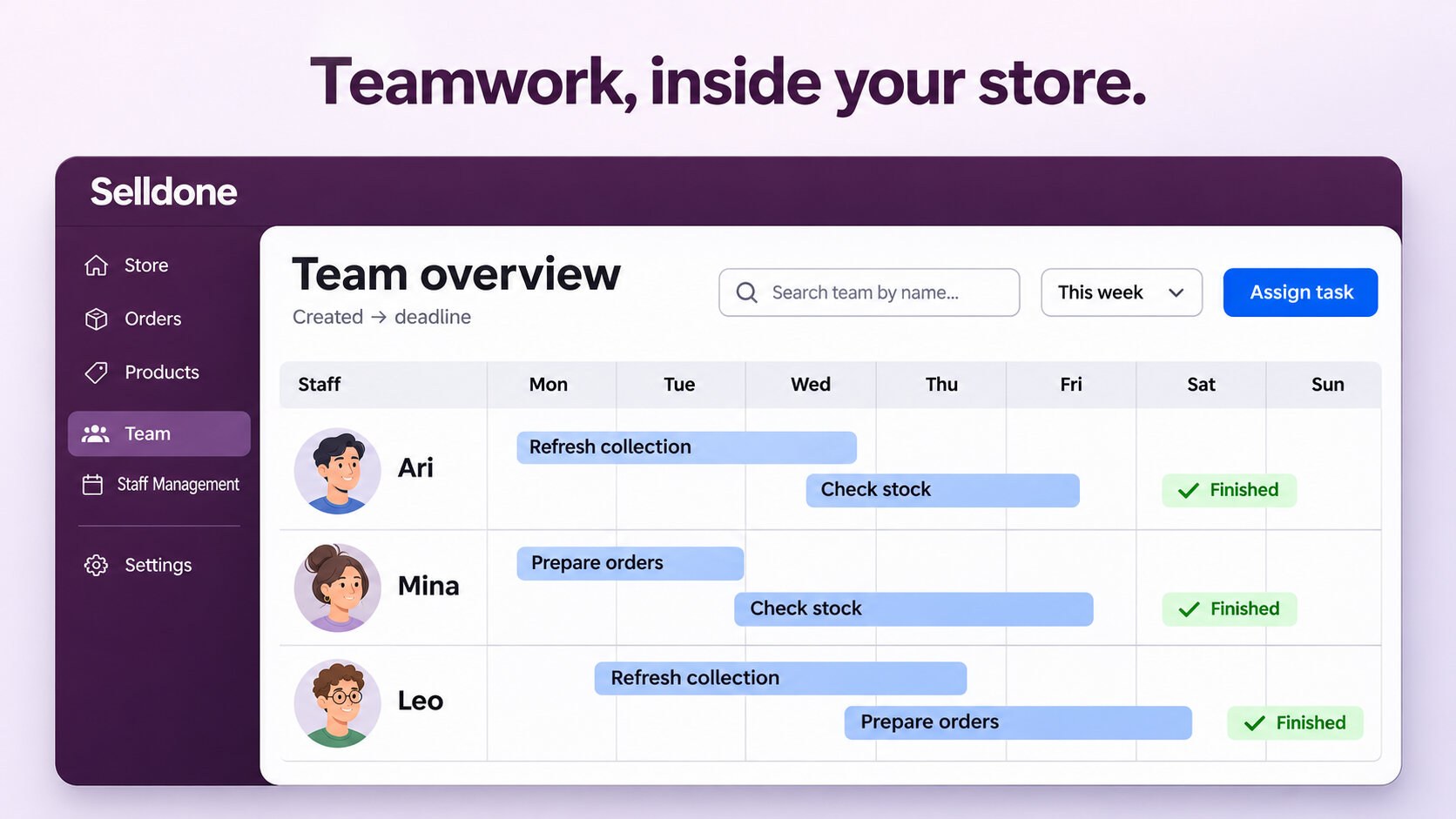
Open the store's Staff section and the first tab is now Overview. Its summary separates open tasks, work due today, overdue work, tasks reported Done, and tasks a manager has Finished. You can see what needs attention before opening an individual colleague's workspace.
The weekly Team task flow groups work by its current assignee. Dated tasks appear on a Gantt-style timeline, while tasks without a deadline stay in a separate, visible list. Completion markers and green finish checks help explain how work moved forward.
A bar runs from task creation to its deadline. It describes the task's date span; it is not a shift, a booked work slot, or a measure of hours worked.
Find a colleague by name or exact user ID, select one person, filter by task status, and move between weeks. Larger teams have paginated colleague rows. Busy colleagues start with a compact task digest and can be expanded into bounded task pages, keeping a hundred-person team or a crowded week manageable. Clear empty states distinguish no colleagues, no assigned work, and no matching results.
Give every colleague a focused workspace
A staff member's dedicated page brings together Overview, Tasks, Activity, Logs, and Settings. Overview is a digest: headline activity figures, a short task list, a daily activity graph, and recent intervals with recorded work. The complete task list and full activity history have their own tabs.
Staff avatars in the dashboard and the shop footer link to the corresponding staff workspace when the viewer has access. The dashboard's Staff count opens the staff list. Real connected AI-agent avatars similarly lead to their own connection pages; sample identities remain informational.
Assign an outcome, then choose what a useful update looks like
Managers can assign work from Team Overview or a staff workspace. The fullscreen task form keeps the assignee, title, instructions, local deadline, and reporting requirements together. A separately labeled live preview shows how the task will appear to the assignee as the definition changes.
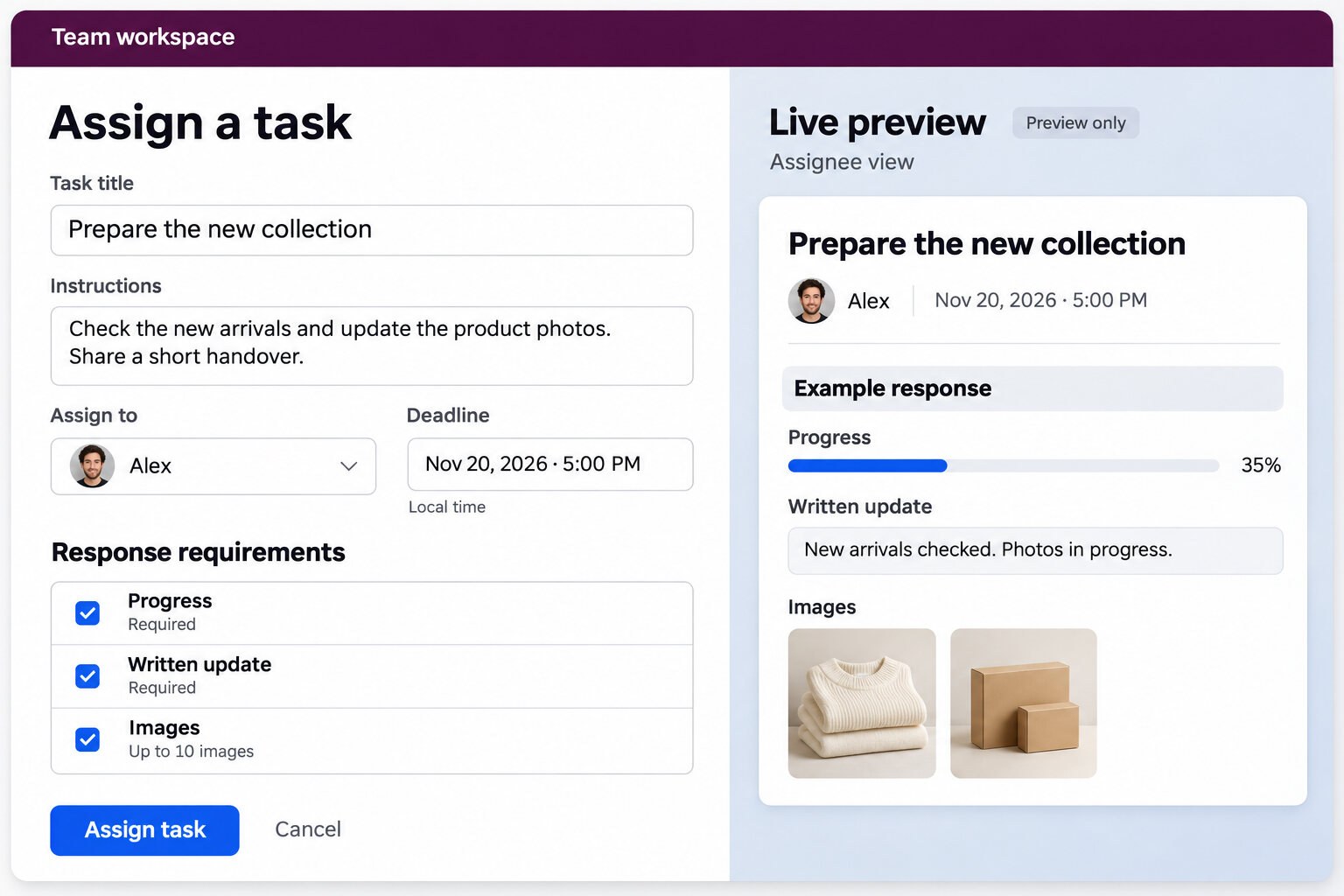
Choose the response controls that fit the job:
- Progress: allow a percentage update, and optionally require 100% before the assignee can report Done.
- Written update: allow a short report, and optionally require one to complete the task.
- Images: allow up to ten private images per task, and optionally require at least one. Each image can be up to 5 MiB, in PNG, JPEG, or WebP format.
For example, a new-collection task might ask for product preparation, a written summary of anything still missing, and a few photographs of the finished display. A quick catalog check might need only a progress update. Requirements are chosen for each task rather than imposed on every piece of work.
Keep responsibility with the assignee
Opening a task shows its normal detail view first. The current assignee can report status, progress, a written response, and permitted images directly in that view. Authorized managers use an explicit Edit task settings action to change the definition inside the same dialog.
Being the owner or a manager does not give someone the ability to fill in another colleague's report. Only the current assignee can submit those response fields. Team colleagues can see task definitions and shared task status or progress; response notes and images remain available only to the assignee and authorized managers.
Keep daily work easy to find
The store dashboard's My work digest shows at most three compact rows. When a visible task has an image, the digest can show a small private thumbnail with a larger preview on hover, focus, or tap. View all tasks opens the complete personal My work list.
This is the signed-in person's work queue. Assignment stays in the team-management workspace, keeping the personal view focused on the next update or result.
Done is a report. Finish closes the task.
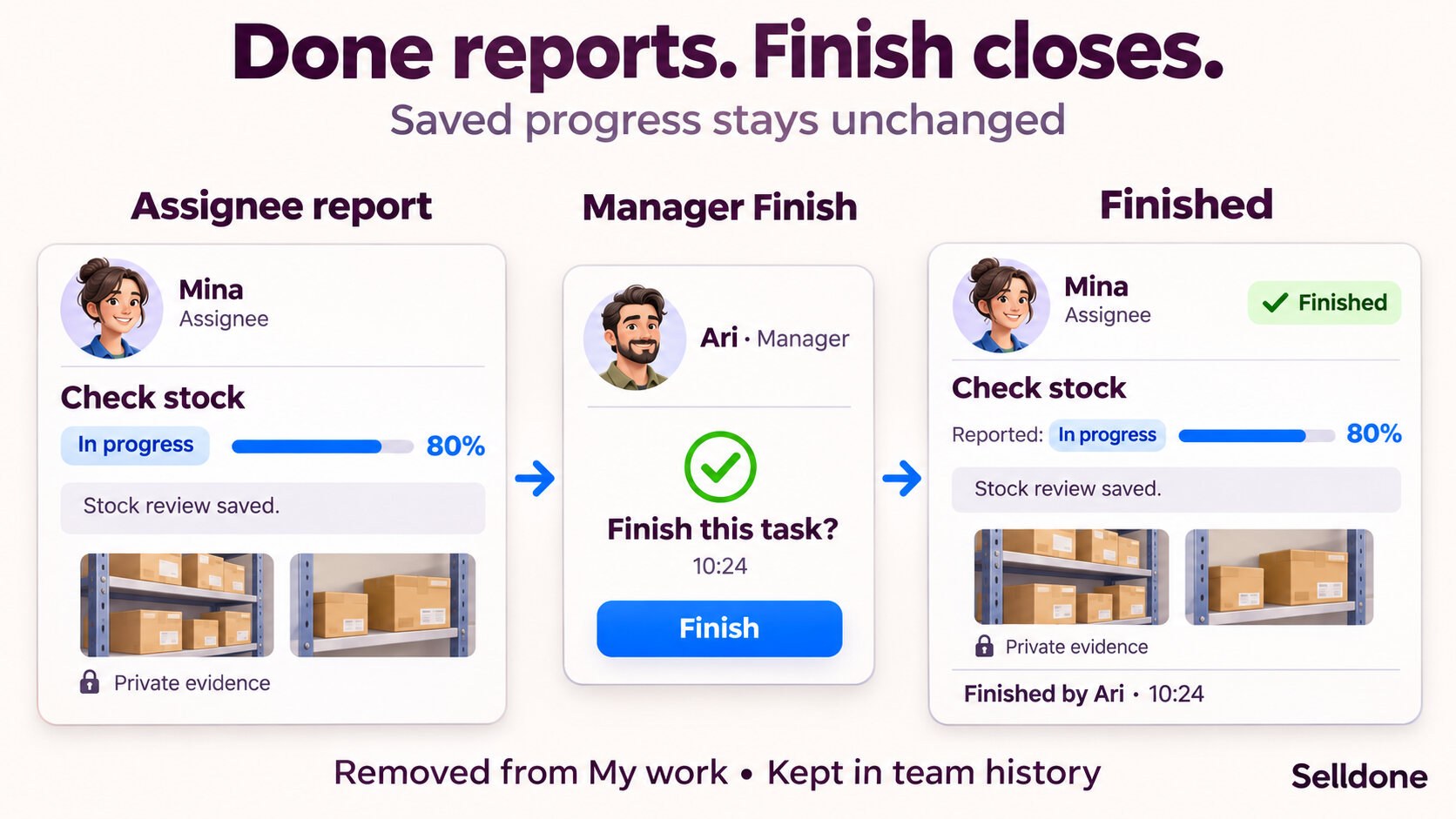
Two distinct actions help the team keep an honest record:
- Done is the assignee's reported state. The task's required progress, text, or image inputs must be satisfied before that report is accepted.
- Finish is an authorized manager's closing action. Selldone records the finisher's identity, name and time, and displays their avatar.
Finishing does not rewrite the assignee's report or turn an incomplete percentage into 100%. It closes the task with its saved evidence intact. Finished work becomes read-only, disappears from the assignee's My work and dashboard digest, and remains in team and staff history with a Finished badge and a green timeline check.
Understand activity through one connected timeline
The Activity tab combines observed dashboard sessions and recorded actions in one compact tree. Expand a time interval to see work such as product changes, order or fulfillment actions, page updates, and task events. Short summaries help you scan the day before opening individual details.
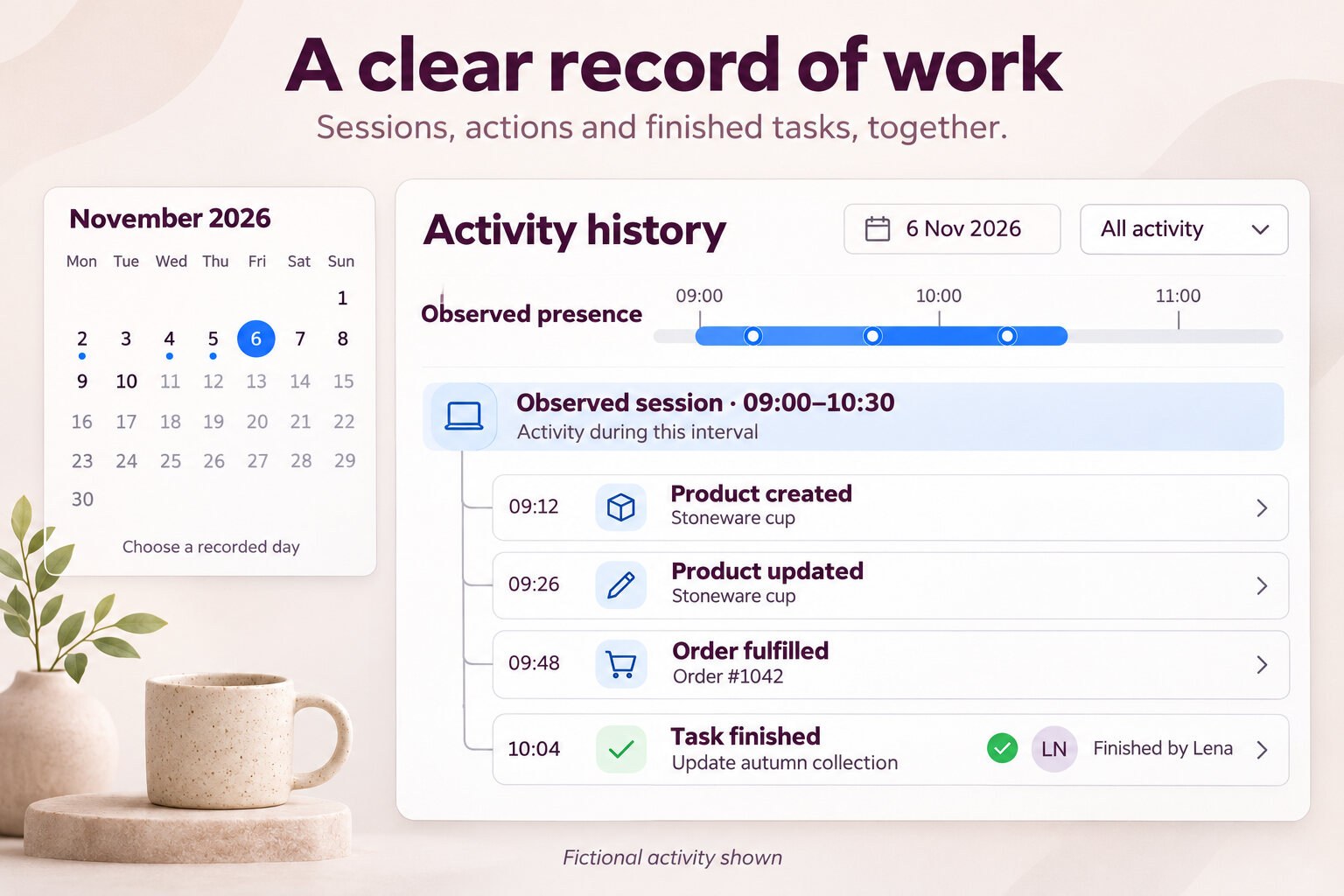
The daily graph brings observed presence, action markers, and task-completion markers together. Hover or focus a time range for a short breakdown, then select it to inspect the recorded work in that range. A calendar dialog marks days with recorded sessions or activity and keeps future dates and dates outside the available history window unavailable.
Supported events link to the relevant native dashboard destination: a product, an order, an order's message area, or a page. Existing destination permissions still apply. If a resource has been removed or access has changed, the recorded event keeps its historical context without promising access to a missing object.
Observed dashboard activity is not attendance or payroll evidence. Presence comes from fresh foreground observations, excludes idle or background gaps, and avoids double-counting overlapping observed intervals. An action is not attributed to a particular browser tab merely because their times overlap. The workspace does not reconstruct activity from before recording began.
Use Logs when you need a compact list of recorded changes
Automation's Logging section provides a Business activity list, and each staff workspace has its own Logs tab. Authorized platform administrators also have a user-level business-log view across the relevant shops.
Supported native operations include product creation, updates and removal; order, fulfillment and customer-message actions; page and task changes; incentives; shipping-method and shipping-service changes; payment-gateway changes; and staff invitations, grants, access changes, removal and leaving.
Filters help narrow the list by actor, area, operation, date, search, or a relevant page resource. Compact rows open fuller details when needed. Recognized new product-update events can show actual saved before-and-after changes. Historical records without captured comparisons remain context-only; they do not invent old values from today's product.
This is a record of supported operations, not a claim that every platform action is audited. Failed operations are not presented as successful changes. Recognized product-update comparisons reflect actual saved differences rather than timestamp-only or unchanged submissions. Audit entries exclude gateway credentials, gift-card redemption codes, and raw request bodies.
History follows the store's plan
Recorded activity and observed presence have a rolling retention window based on the store's current license:
- Free: 24 hours.
- Startup: 7 days.
- Company: 14 days.
- Enterprise: 30 days.
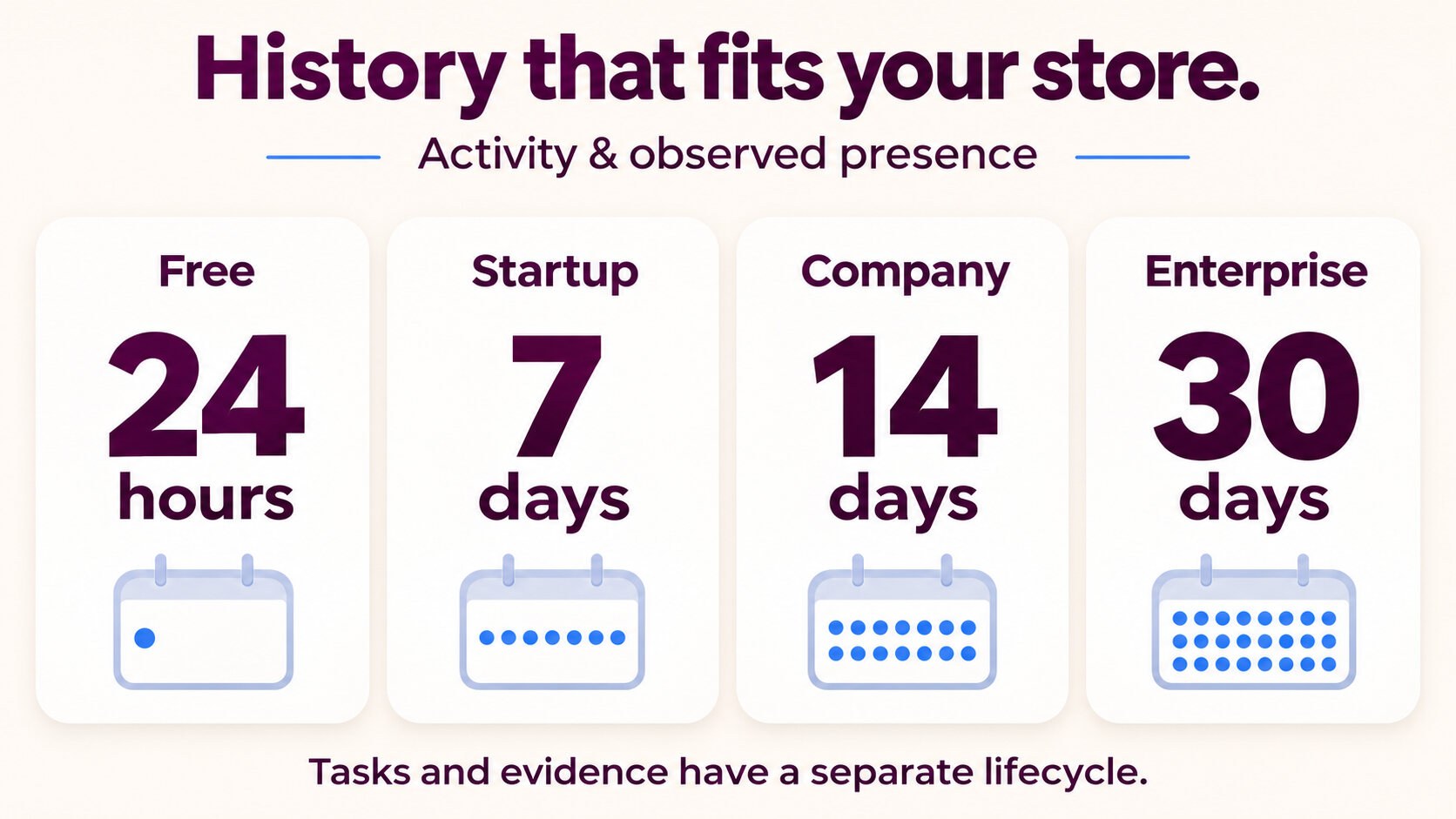
The current window applies to reads, including after a plan change, and expired telemetry is removed through the existing cleanup schedule. Task definitions, submitted evidence, and the durable Finish record are separate work records; they do not expire just because the activity-history window ends.
A practical way to start
- Open Staff > Overview and review the team's current work.
- Assign one clear outcome to an accepted colleague, with a deadline when it is useful.
- Enable only the progress, written update, and images that the result actually needs.
- Let the assignee report from their normal task view and follow progress through Team Overview or Activity.
- Use Finish when an authorized manager wants to close the task and clear it from the personal work queue.
The result is a shared operational view connected to the same store where the work happens: clear assignments, visible progress, private evidence, and a record that explains what changed.
Product illustrations use fictional people, tasks, and events to explain the workflows. The application's data and available controls depend on the current shop, license, and permissions.
FAQ
Who can update a task's progress, report, or images?
Only the current assignee can submit task status, progress, a written response, or images. Authorized managers can edit the task definition and Finish it, but they cannot fill in another person's report.
What is the difference between Done and Finished?
Done is the assignee's reported state, subject to the task's required inputs. Finish is an authorized manager's closing action. It records the finisher and time, makes the task read-only, and removes it from personal My work without changing the saved report or progress.
Are task images visible to the whole team?
No. Task response images and written responses are private to the assignee and authorized managers. Other accepted colleagues can see task definitions and shared task status or progress through the team workspace.
How long is staff activity history retained?
The current shop plan determines the rolling window: Free 24 hours, Startup 7 days, Company 14 days, and Enterprise 30 days. Expired activity and presence telemetry is cleaned up. Task definitions, evidence, and the Finish record have a separate durable lifecycle.
Does the activity graph measure attendance or paid work?
No. It shows observed foreground dashboard activity and recorded supported actions. Idle and background gaps are excluded, overlapping observed intervals are not counted twice, and timing alone does not attribute an action to a particular tab.
Does Team Management require a separate service?
The workspace uses the existing Selldone shop dashboard, staff login, permissions, and work records. No separate team-management service is required for these features.
Make Your Business Online By The Best No—Code & No—Plugin Solution In The Market.
30 Day Money-Back Guarantee
Create Your E-commerce StoreStart now — it's free
Say goodbye to your low online sales rate!



Share your thoughts with us