


Send store emails on Selldone with Resend SMTP
Want your shop to email customers from your own domain (order receipts, login codes, alerts)? Here’s a clean, copy-and-paste guide. No plugins, no code—just one DNS setup and one form in Selldone.
What you need
- A Selldone store
- Access to your domain DNS (Cloudflare or similar)
- Create an account on https://resend.com (Email Service)
Step 1 — Create a free account on Resend
Sign up on resend.com and open the Domains page.
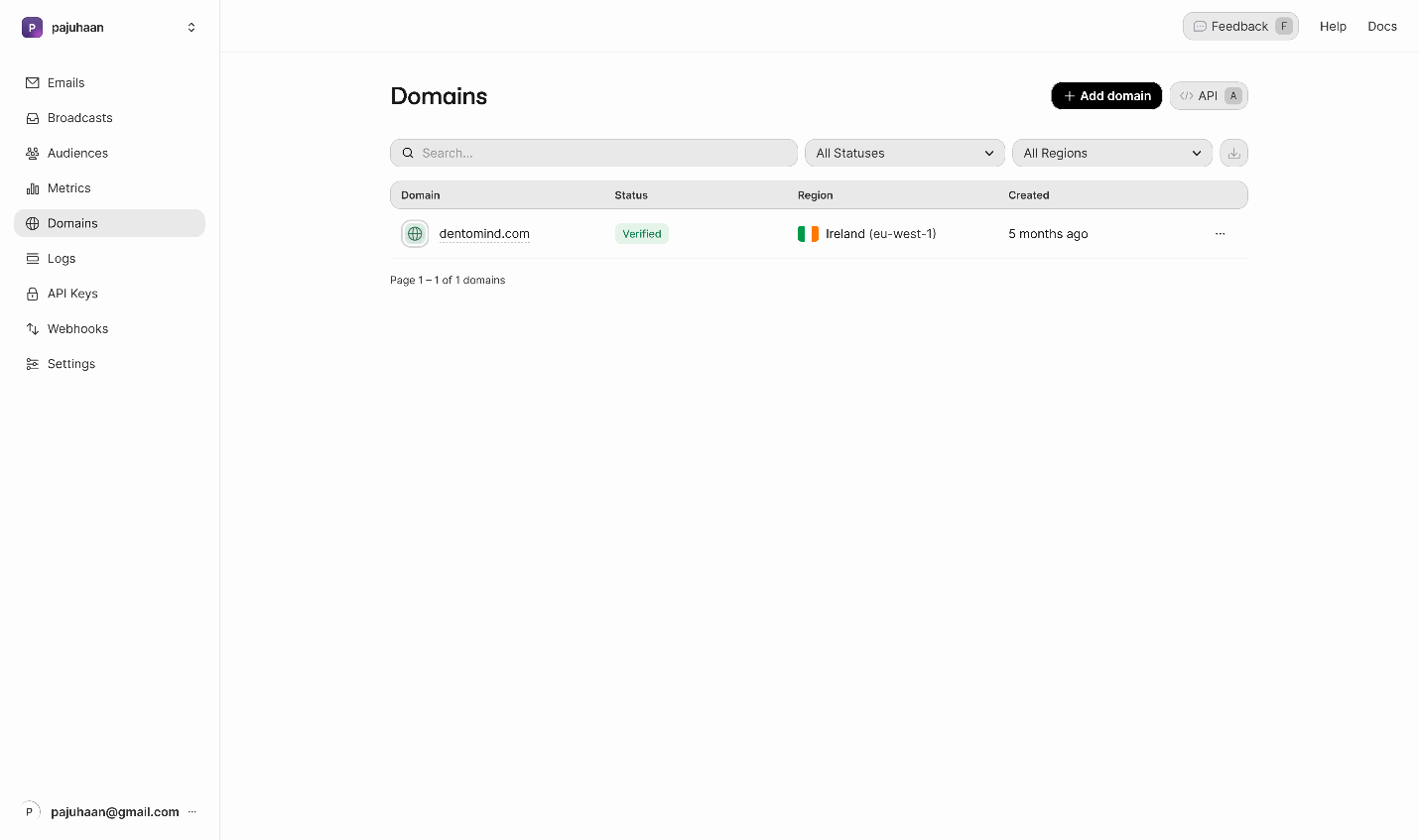
Click Add domain, enter your store domain (e.g., yourbrand.com).
Step 2 — Verify your domain in Cloudflare
Resend shows a set of DNS records (SPF, DKIM, etc.). Add them in Cloudflare for your domain.
When the records are correct, the domain status becomes Verified on the Resend Domains page.
Tip
Your emails must be sent from addresses on this verified domain (e.g., [email protected]). Don’t use free addresses like Gmail here.
Step 3 — Grab your SMTP settings in Resend
Open Settings → SMTP in Resend. You’ll see the host, ports, and the fixed username.
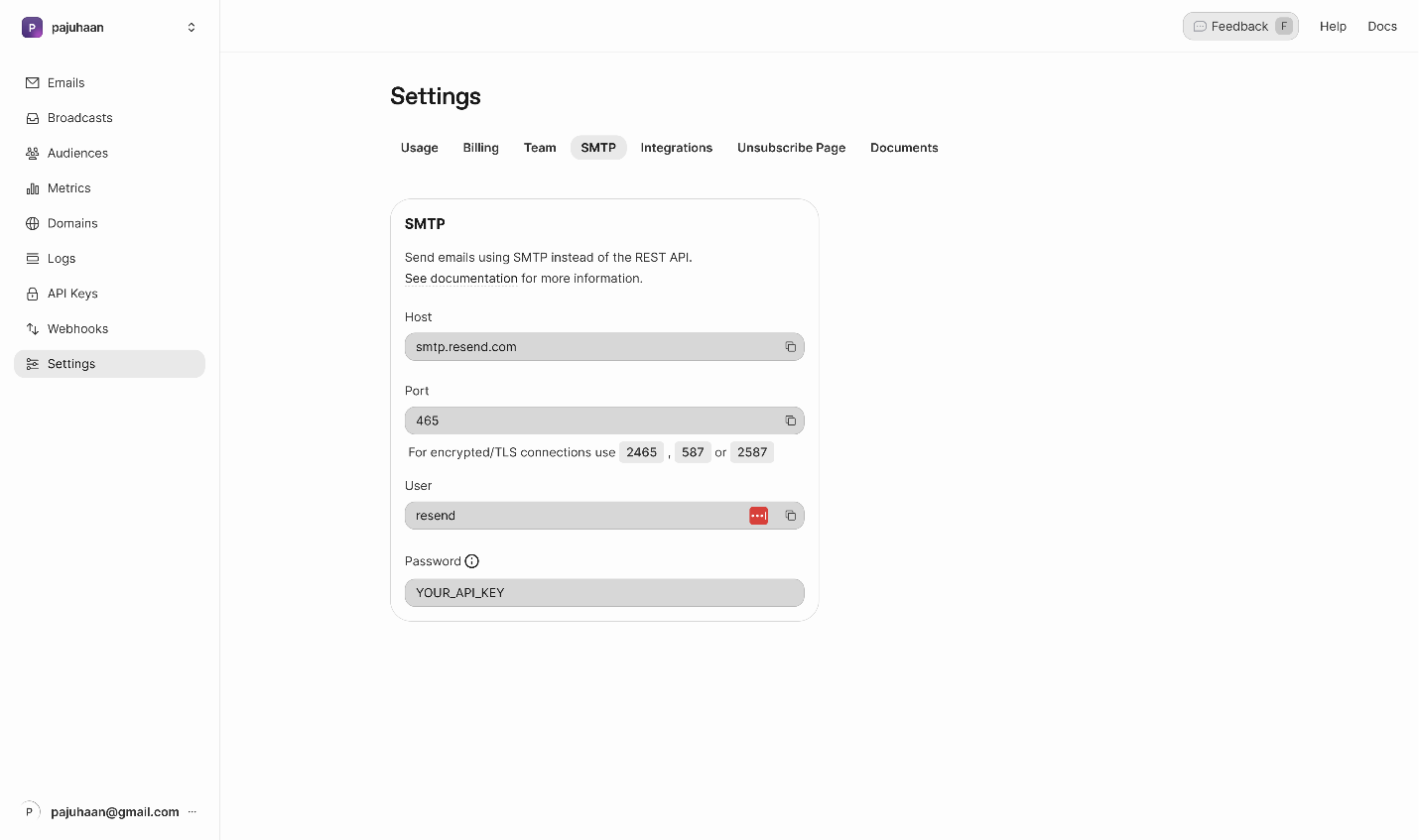
Use
· Host: smtp.resend.com
· Username: resend
· Port + Encryption:
· 465 with SSL, or
· 587 with TLS/STARTTLS
· Password: your Resend API key (created next)
Step 4 — Create a Resend API key
Go to API Keys in Resend and click Create API key.
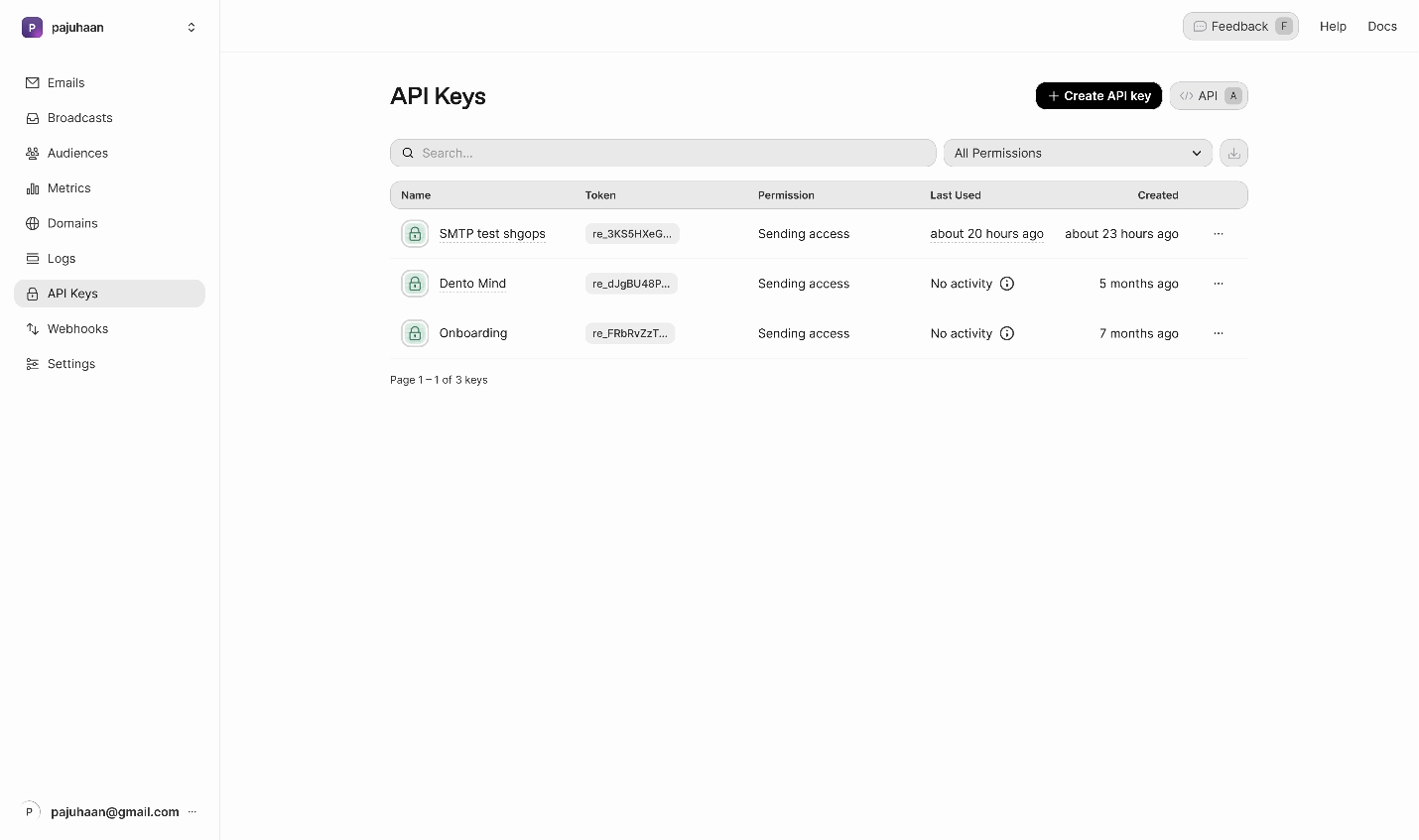
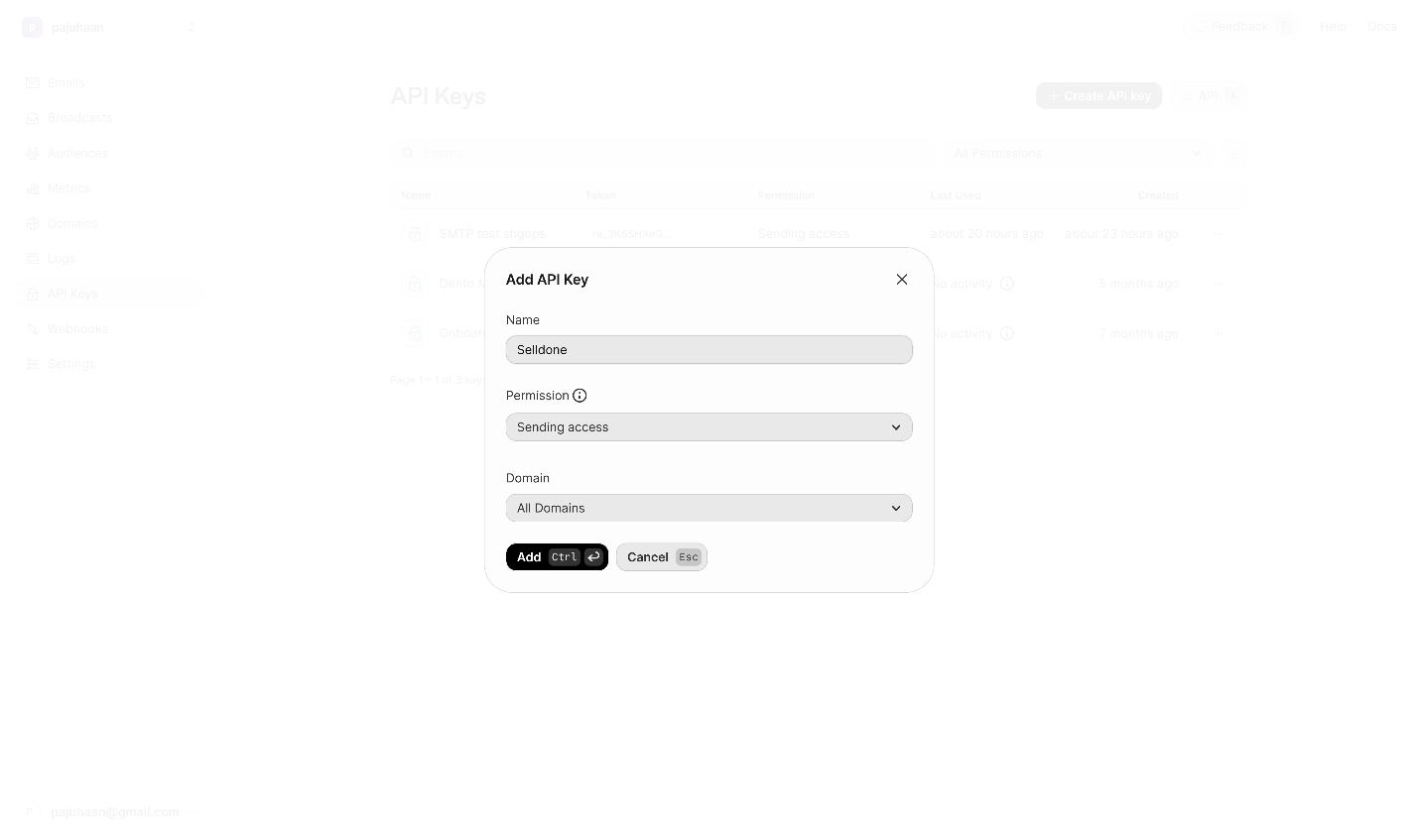
Copy the token; you’ll paste it in Selldone as the SMTP Password.
Step 5 — Configure SMTP in Selldone
In your Shop -> Settings -> open Email and choose the SMTP tab.
Enable Custom Mail Server and select SMTP as the provider.
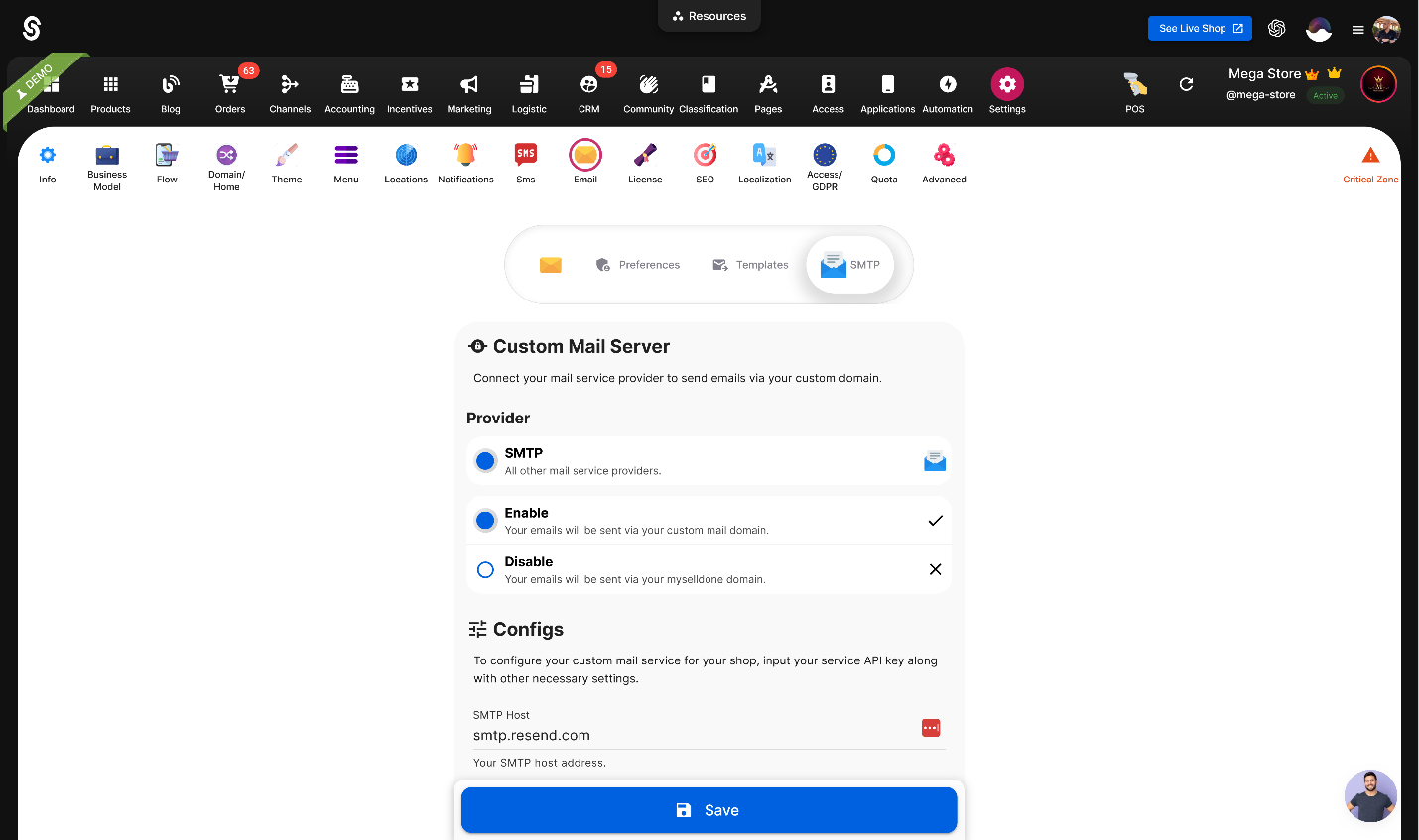
Fill the SMTP form exactly as below.
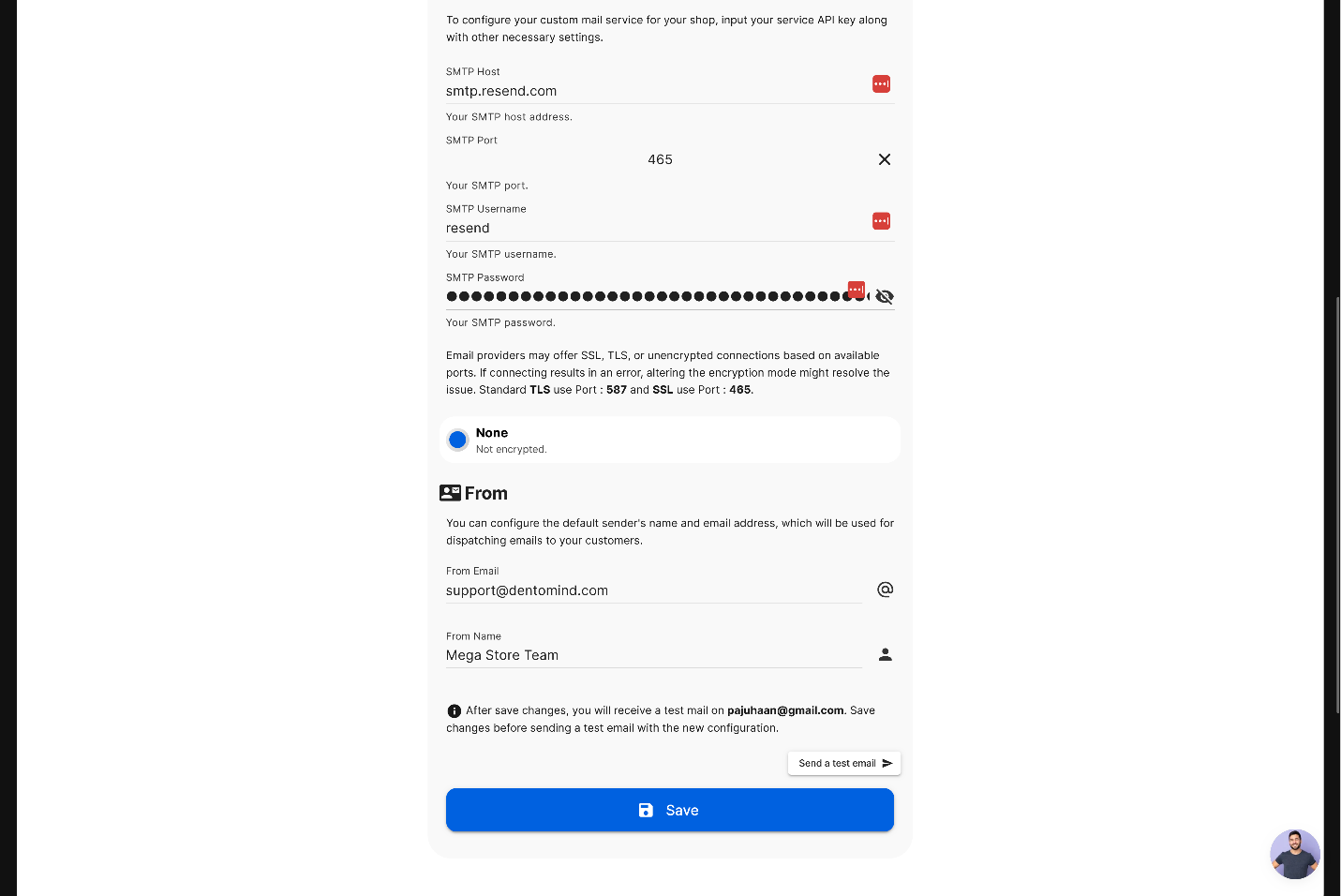
Required fields
• Provider: SMTP (Enabled)
• SMTP Host: smtp.resend.com
• Port & Encryption:
o If you choose 465, set Encryption = SSL
o If you choose 587, set Encryption = TLS/STARTTLS
• SMTP Username: resend
• SMTP Password: paste your Resend API key
• From Email: an address on your verified domain (e.g., [email protected])
• From Name: the display name customers see (e.g., Mega Store Team)
Click Save.
Heads-up
The From Email must match your verified domain in Resend, otherwise mail will be rejected.
Quick reference
|
Field |
Value |
|---|---|
|
Host |
smtp.resend.com |
|
Username |
resend |
|
Password |
your Resend API key |
|
Port + Encryption |
465 + SSL or 587 + TLS |
|
From Email |
e.g., [email protected] |
|
From Name |
e.g., Mega Store Team |
 Add Comment
Make Your Business Online By The Best No—Code & No—Plugin Solution In The Market.
30 Day Money-Back Guarantee
Create Your E-commerce Store Start now — it's freeSay goodbye to your low online sales rate!