


Add your sitemap to Google Search Console
A sitemap is basically the master index of your store for search engines. It’s an XML file that tells Google which pages exist, how important they are, and how often they change. Bots need the raw XML to crawl you correctly, but humans usually just see an ugly wall of code. That’s why a professional platform like Selldone gives you both: a standards-compliant XML sitemap for Google, wrapped in a clean, human-friendly view so you can actually understand your structure, debug issues, and manage SEO with confidence instead of guessing.
1. Before you start
Make sure these three conditions are true for your shop domain:
- The domain is added in Admin → Shop → Settings → Domains
- The domain is enabled
- The domain is Verified in Google Search Console and the Index option is checked in Selldone
If Index is not checked, you will see an error on the sitemap page and your sitemap will not be available at:
- https://your-domain.com/sitemap
- https://your-domain.com/sitemap.xml
2. Find your sitemap in Selldone
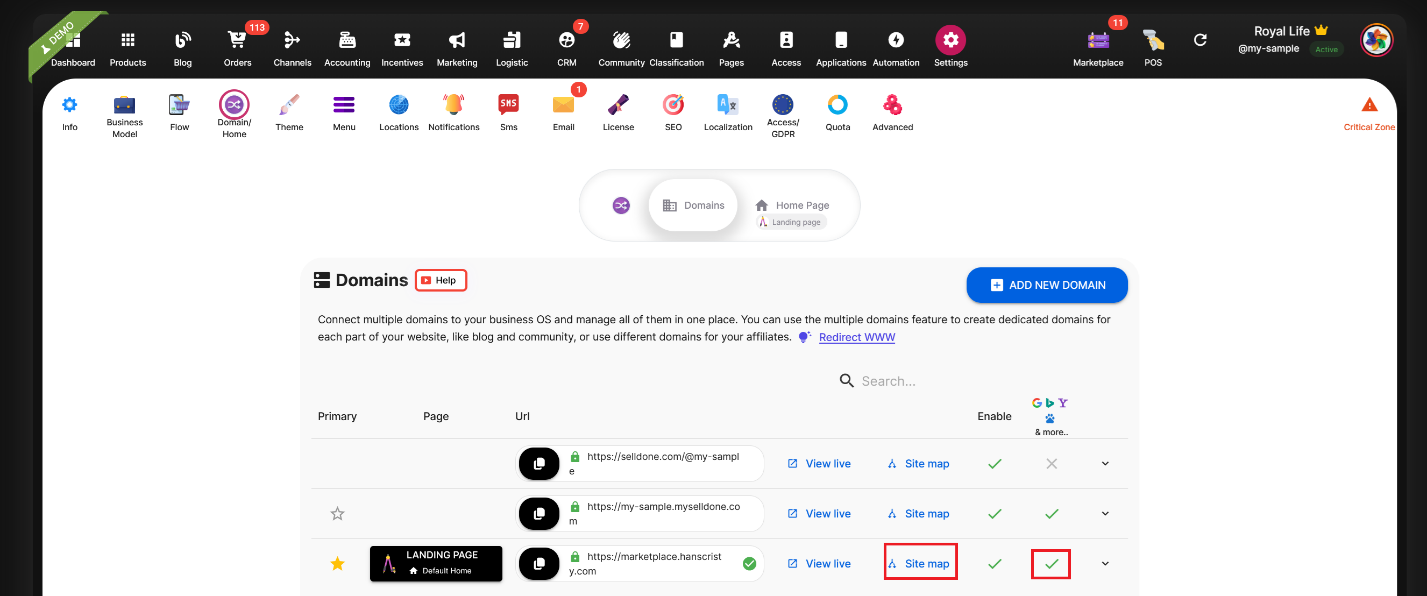
- Go to Admin → Shop → Settings → Domains.
- Find the domain you connected and verified in Google Search Console.
- Click the Sitemap button on that domain card.
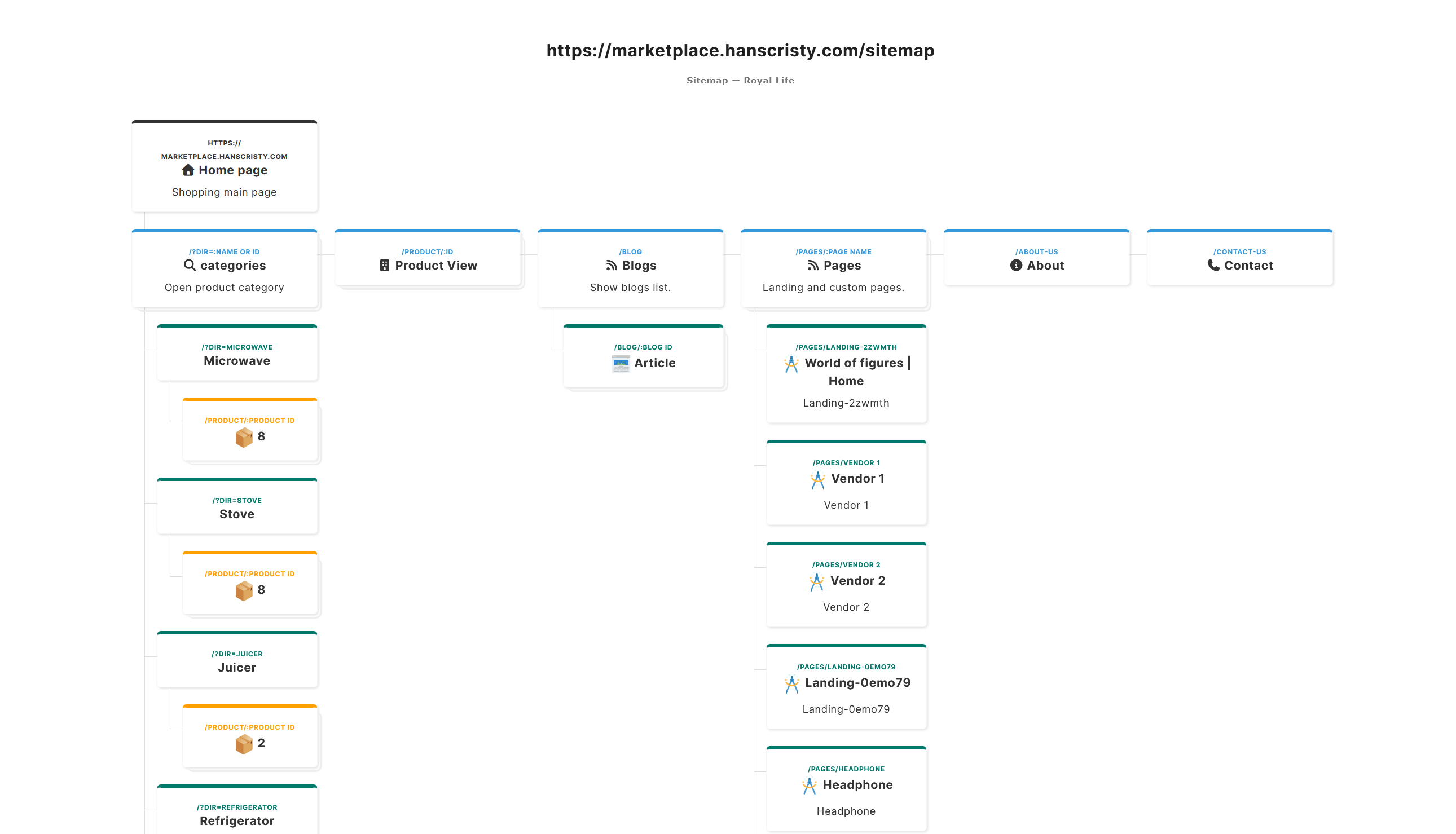
- A new page opens that shows the sitemap index and its structure.
- Click the main sitemap link, or copy the URL from the browser address bar. This URL is what you will submit in Google Search Console.
3. Why the sitemap page looks like HTML
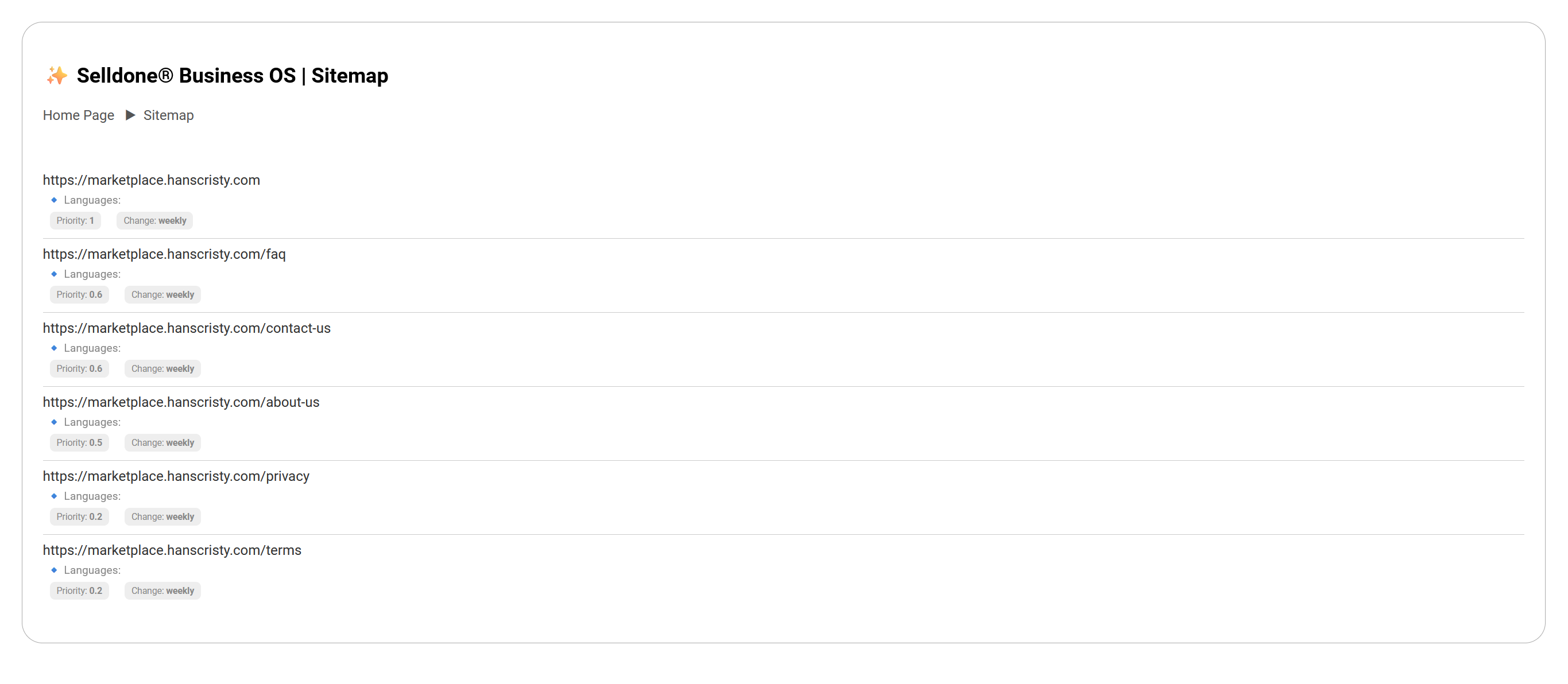
When you open the sitemap link, you see a nicely formatted page with a table of links.
Some users think “this is HTML, not XML” – but it is an XML sitemap.
Selldone uses an XSL stylesheet to render the XML in a human-friendly way:
<?xml-stylesheet type="text/xsl"href="/assets/sitemap/sitemap-style.xsl"?>
Search engines read the XML, and humans see a clean visual view of the same data. Most site builders either show raw XML or nothing at all – Selldone supports a more professional, readable sitemap view.
4. How to see the raw XML source
If you want to see the actual XML that Google reads:
- Open your sitemap URL (for example https://your-domain.com/sitemap).
- Right-click on the page.
- Choose View page source (or similar, depending on your browser).
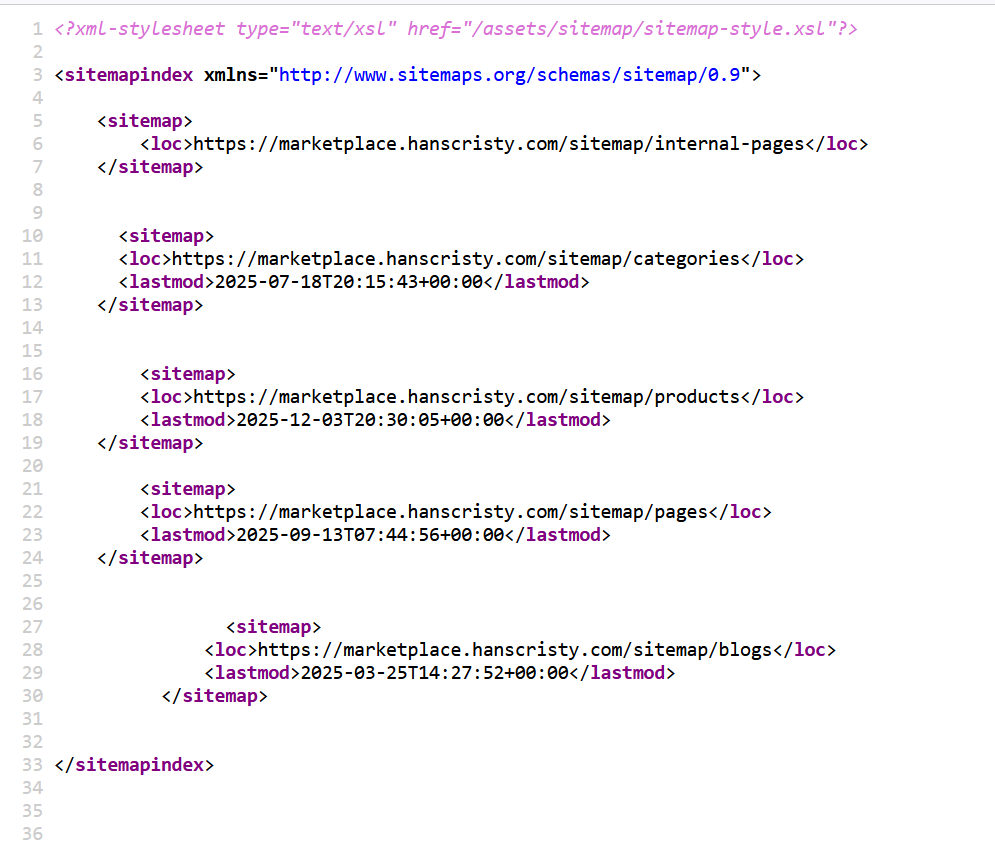
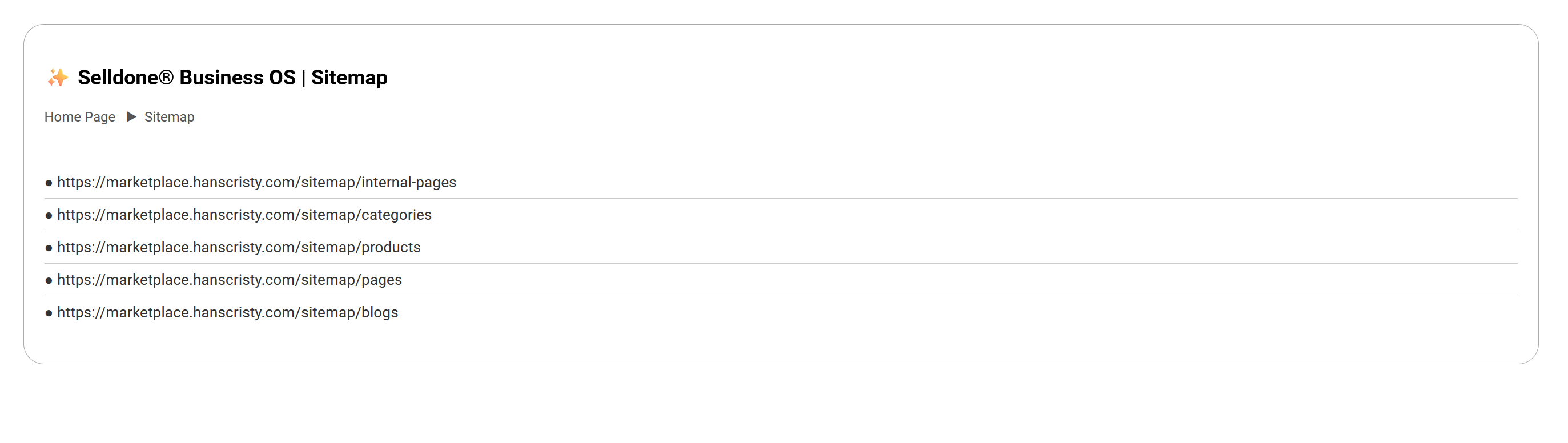
The root sitemap index only contains links to other sitemaps. Each child sitemap focuses on a specific type of content (categories, products, pages, blogs, etc.). This is the recommended structure for large ecommerce sites.
5. Submit your sitemap in Google Search Console
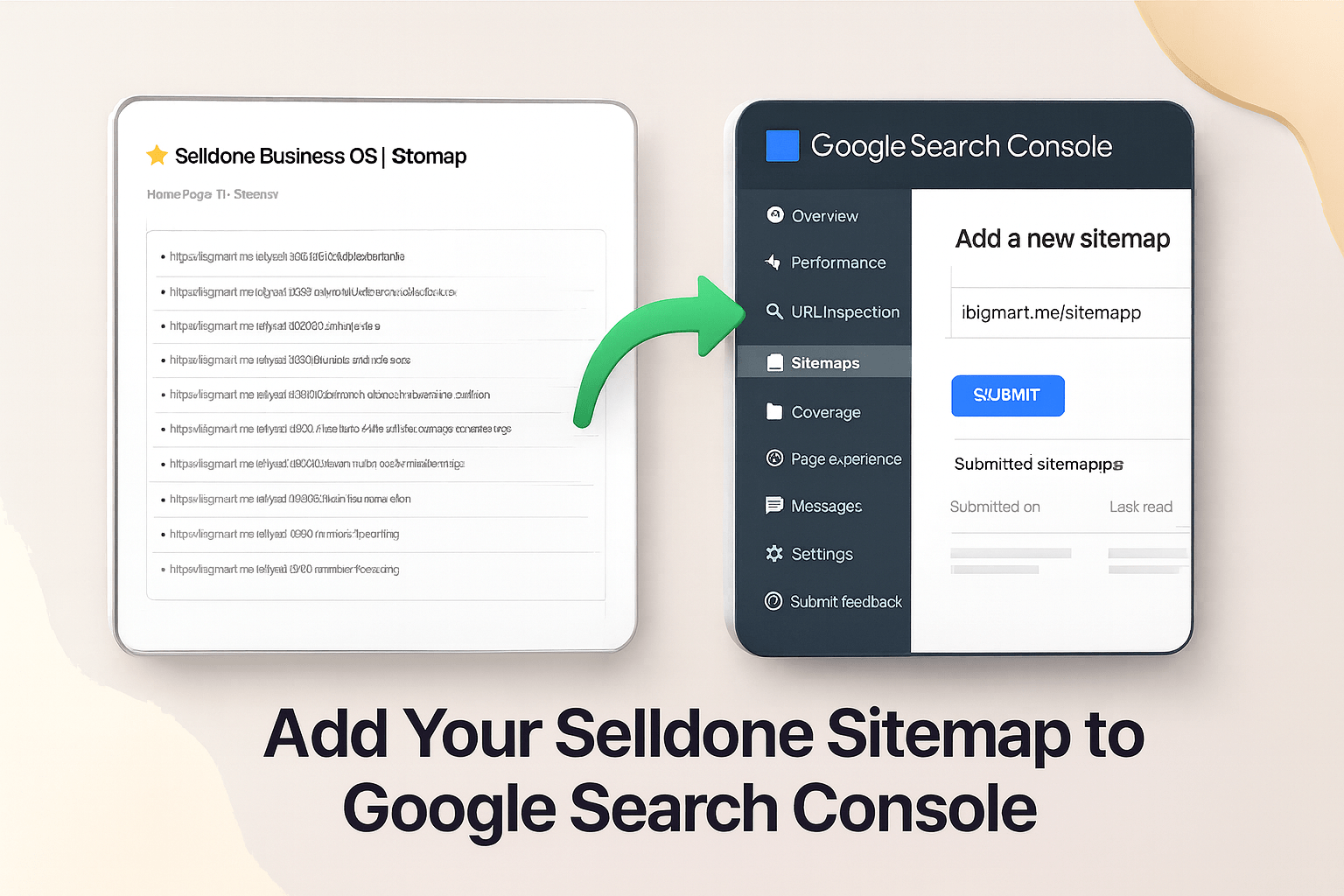
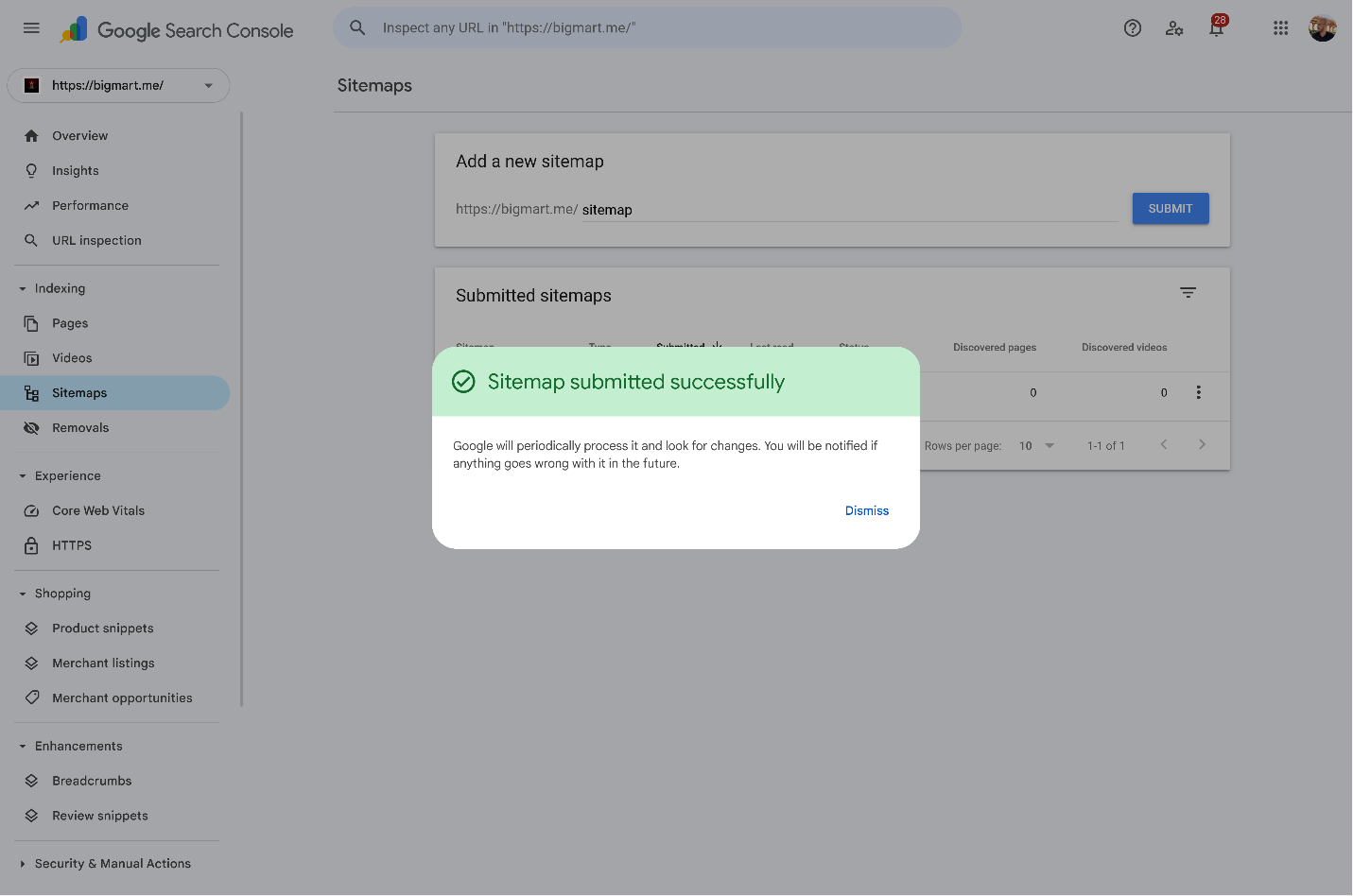
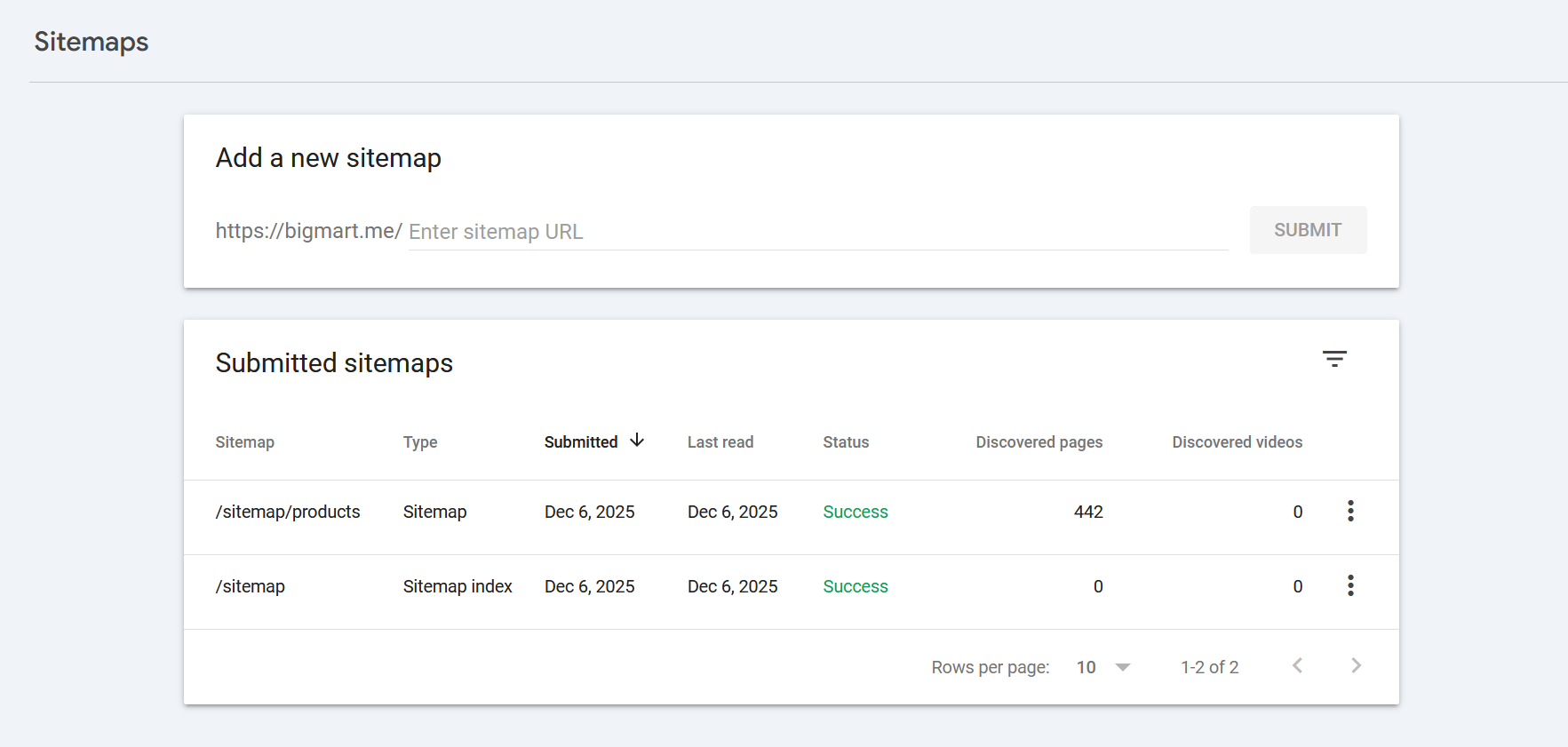
To submit your sitemap, open Google Search Console and select the property for your domain. In the left-hand menu, click Sitemaps, then in the Add a new sitemap field enter only the path — for example sitemap or sitemap.xml — and click Submit.
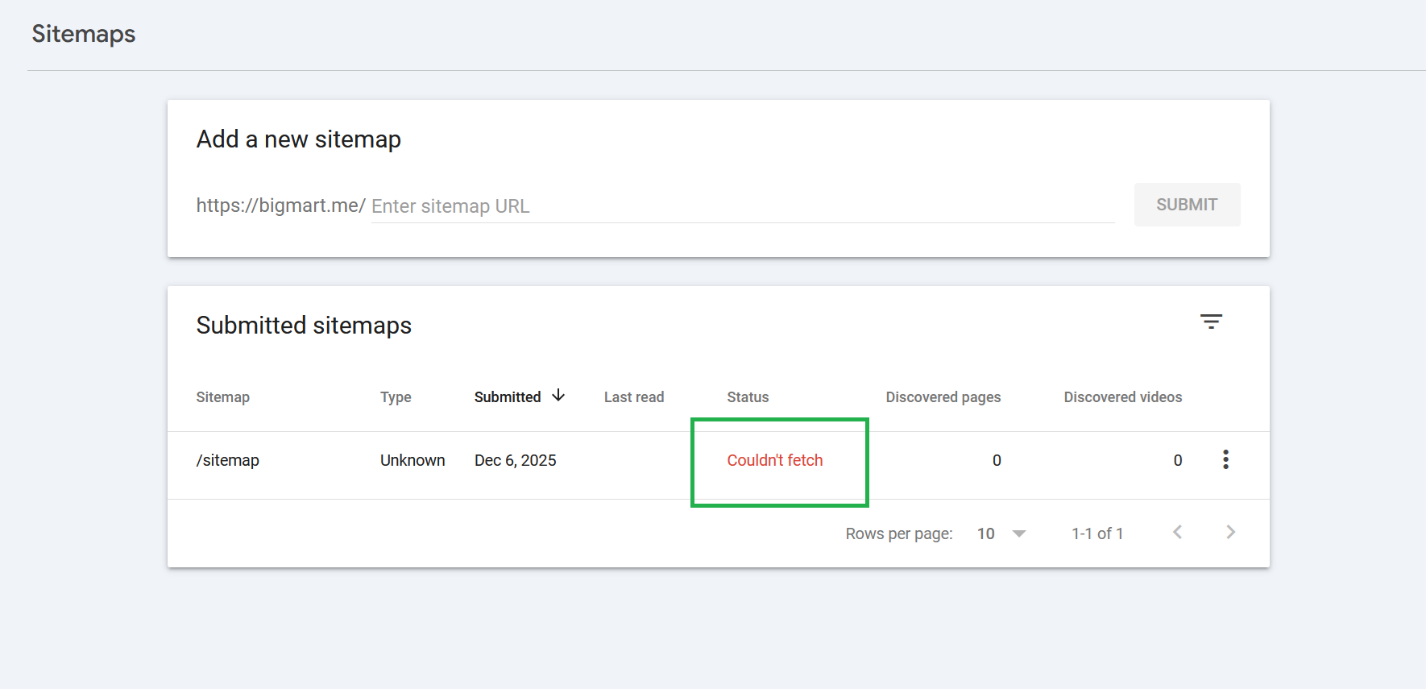
If you see a temporary warning such as “Couldn’t fetch” or another crawl error, it’s usually not a problem with Selldone or your sitemap. These messages often disappear after a few minutes, hours, or even days, depending on how Google is currently crawling your site. Many stores use this exact sitemap format without any issues. Just wait a bit and refresh the page; in most cases the warning will clear and the status will change to Success.
6. Recommended sitemap URLs to add
Submitting only the root sitemap is enough.
Google will automatically follow all links inside the sitemap index.
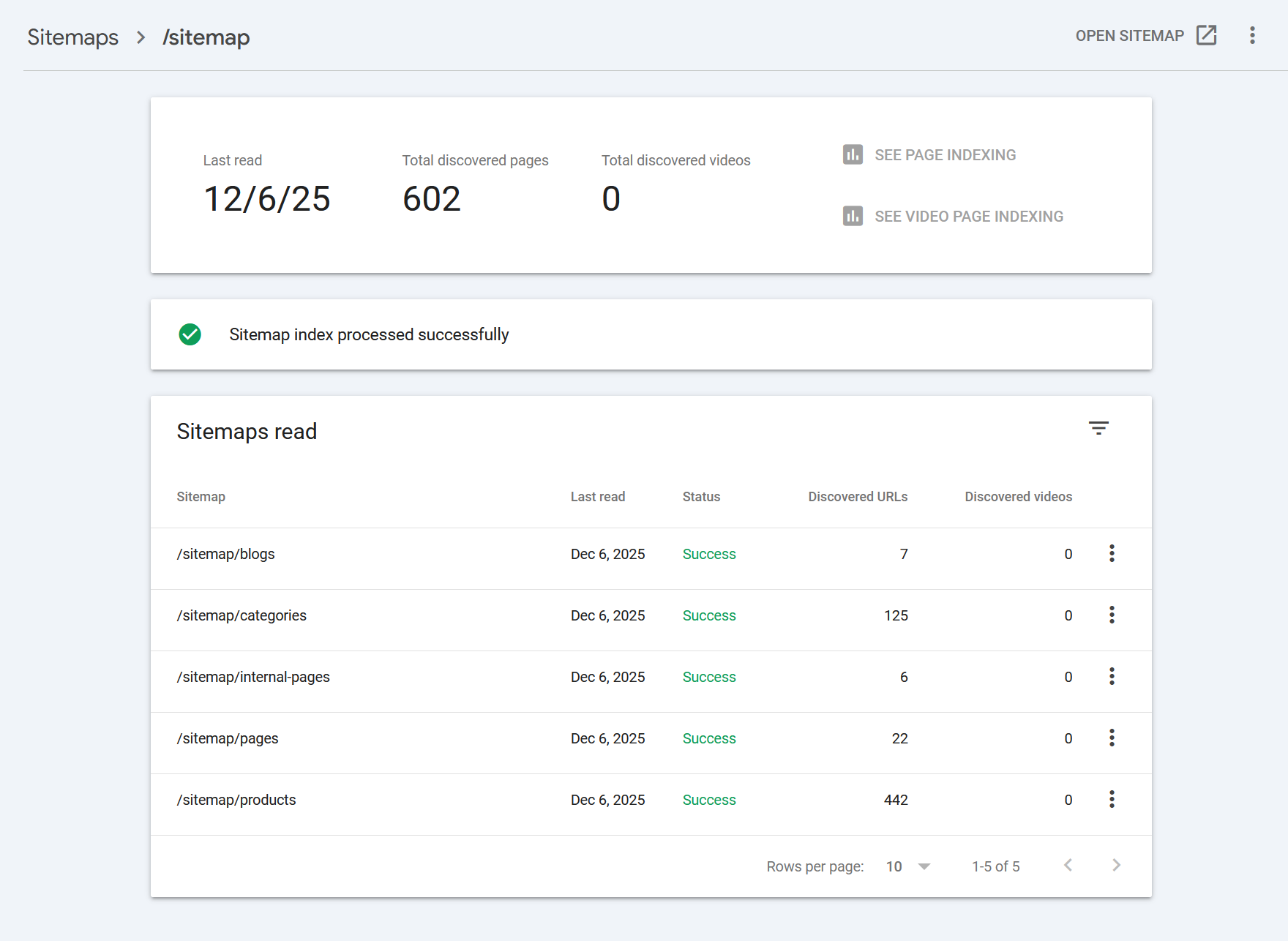
However, for better visibility and extra control, we recommend you also submit the individual sitemap URLs you see in your root sitemap index, for example:
• /sitemap/internal-pages
• /sitemap/categories
• /sitemap/products
• /sitemap/pages
• /sitemap/blogs
• and any other sitemap URLs shown in your root sitemap (e.g. landing pages, etc.)
Why this helps:
• Google can show you separate statistics for each sitemap
• You can see how many URLs were discovered per content type
• You can quickly spot problems specific to products, categories, blogs, etc.
Even if you only submit the main /sitemap or /sitemap.xml, Google will still discover all of these child sitemaps because Selldone follows the latest sitemap standards.
7. Summary
- Generate and open your sitemap from Admin → Settings → Domains → Sitemap.
- Ensure the domain is enabled and indexing is turned on.
- The pretty HTML-like page is still valid XML, styled through XSL.
- Use View page source if you want to inspect the raw XML.
- Submit /sitemap or /sitemap.xml in Google Search Console.
- Optionally add each child sitemap path for extra clarity and analytics.
That’s it – your Selldone shop is now using a professional, fully structured sitemap setup that scales from small boutiques to very large marketplaces.
 Add Comment
Make Your Business Online By The Best No—Code & No—Plugin Solution In The Market.
30 Day Money-Back Guarantee
Create Your E-commerce Store Start now — it's freeSay goodbye to your low online sales rate!
FAQ
Is my sitemap HTML or XML?
Your sitemap is XML. Selldone just adds a visual layer so it looks clean and readable to humans. Search engines only care about the underlying XML, and that is 100% standards-compliant.
Why does my sitemap look like a normal web page?
Because Selldone uses an XSL stylesheet to format the XML. This turns a raw XML file into a human-friendly table view, so you can easily see sections like products, categories, pages, blogs, and debug your SEO structure.
Will Google still read it correctly if it looks like HTML?
Yes. Google and other search engines ignore the styling and read the XML structure directly. The human-friendly view does not change how bots see or process your sitemap.
Do I need to submit every single sitemap (products, categories, blogs, etc.)?
No. Submitting only the main sitemap (for example: sitemap or sitemap.xml) is enough, because it links to all the other sitemaps. Adding each child sitemap separately is optional and mainly useful if you want more detailed stats in Google Search Console.
What if Google Search Console shows “Couldn’t fetch” or another error?
In most cases it is temporary and related to Google’s crawl status, not to Selldone or your sitemap. Many stores use the same format without problems. Just wait a bit and refresh; often the status changes to Success after Google retries.