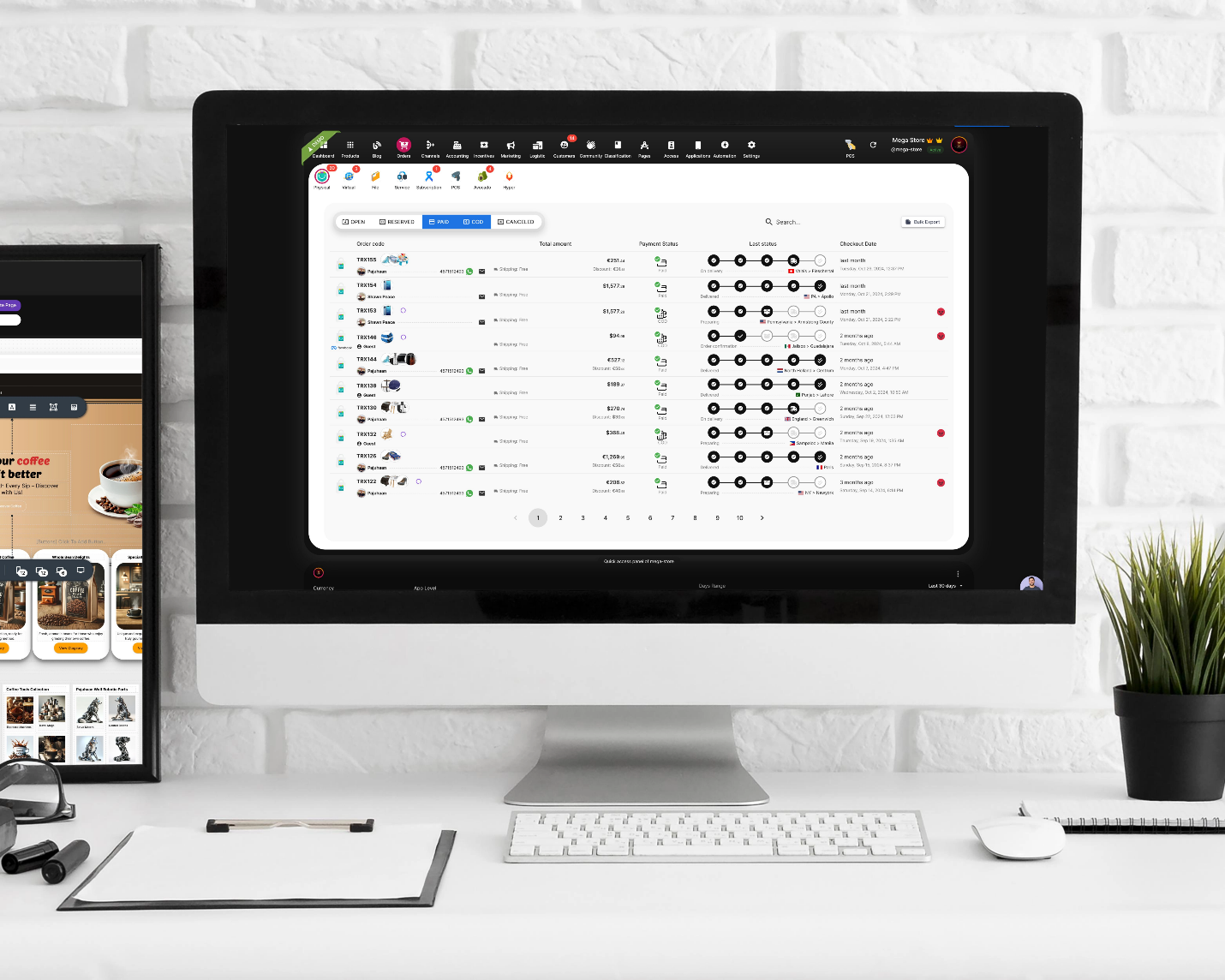



Ecommerce Tax—Your Ultimate Guide to Simplify Tax Collection with Selldone
Navigating the world of ecommerce tax can feel like traversing a maze blindfolded. With varying tax laws across countries, states, and even cities, it's no wonder many online entrepreneurs feel overwhelmed. But what if there was a way to simplify the entire process? In this comprehensive guide, we'll demystify ecommerce tax collection and show you how to set up taxes seamlessly using Selldone, a powerful business management and ecommerce platform. Let's dive in!
Understanding the Basics of Ecommerce Tax
Before we delve into the nitty-gritty of tax setup, it's crucial to grasp the fundamentals of ecommerce tax.
What Is Ecommerce Tax?
Ecommerce tax refers to the taxes that online sellers must collect and remit on sales made through their ecommerce platforms. This includes sales tax, value-added tax—VAT, goods and services tax—GST, and other regional taxes.
Why Is Tax Compliance Important?
Non-compliance can lead to hefty fines, legal complications, and damage to your business reputation. Being proactive about tax collection ensures your business remains in good standing with government authorities.
Key Facts Every Ecommerce Entrepreneur Should Know About Tax
1. No Service Can Automate Tax Calculation 100% Without Your Input
Automated tax services are helpful, but they aren't omniscient. They can't determine the tax rates for your products without knowing what you're selling. You need to define your products' tax classifications in Selldone or any other platform with advanced tax features.
Tip: Use Selldone intuitive interface to assign tax classifications to your products easily.
2. You Are Responsible for Collecting and Remitting Taxes
Regardless of the services or platforms you use, the ultimate responsibility of collecting and remitting taxes falls on you, the seller. Simply making sales doesn't necessarily mean you need to register for a tax code in every country.
- Thresholds Matter: Many countries have sales thresholds (e.g., $100,000) before you must register for tax purposes.
- Know Your Operations: If you have a physical or significant economic presence in a country, you likely need to register.
3. Start Small and Simple
If you're selling thousands of products in dozens of countries, tax compliance becomes exponentially more complex.
- Focus on Limited Product Types: Starting with a narrow range of products simplifies tax classification.
- Use Buyer Location-Based Tax Rates: Selldone allows you to define sales tax based on the buyer's location, making it easier to manage.
4. Selldone Supports Advanced Tax Calculations
Selldone offers robust tools for:
- Product Tax Classification: Assign different tax rates to different products.
- Territory-Based Calculation: Set tax rules based on countries, states, or even cities.
- Automatic Calculation: Taxes are calculated and displayed during checkout.
5. Do You Need to Set Up Stripe Tax?
While you can enable Stripe Tax, it requires manual tax definition for each product. Selldone streamlines this process by handling reliable tax calculations within the platform.
6. Know the Tax Rates for Your Products and Territories
Different products can have varying tax rates even within the same country.
- Research Is Key: Understanding the tax rates applicable to your products in different regions is essential.
- Simplify with Selldone: The platform allows you to set these rates effortlessly.
Coming Soon: Selldone is working on AI-powered tax classification and rate prediction to automate this process further.
Understanding Nexus: Physical vs. Economic [Operation Yes /No]
What Is Nexus?
Nexus refers to a significant connection between your business and a tax jurisdiction, obligating you to collect and remit taxes there.
Physical Nexus
You have a physical nexus in a state or country if you have:
- People: Employees, remote workers, or owners involved in day-to-day operations.
- Property: Inventory stored (e.g., in warehouses or fulfillment centers), vehicles, or leased property.
Tip: If you're just starting out, focus on where you have a physical presence and register for tax collection in those regions.
Economic Nexus
Economic nexus is established based on sales thresholds, typically:
- Transactions: A certain number of sales transactions (e.g., 200 transactions in a state).
- Revenue: A specific amount of sales revenue (e.g., $100,000 in a state).
Important: Economic nexus thresholds reset annually. Monitor your sales to know when you need to register.
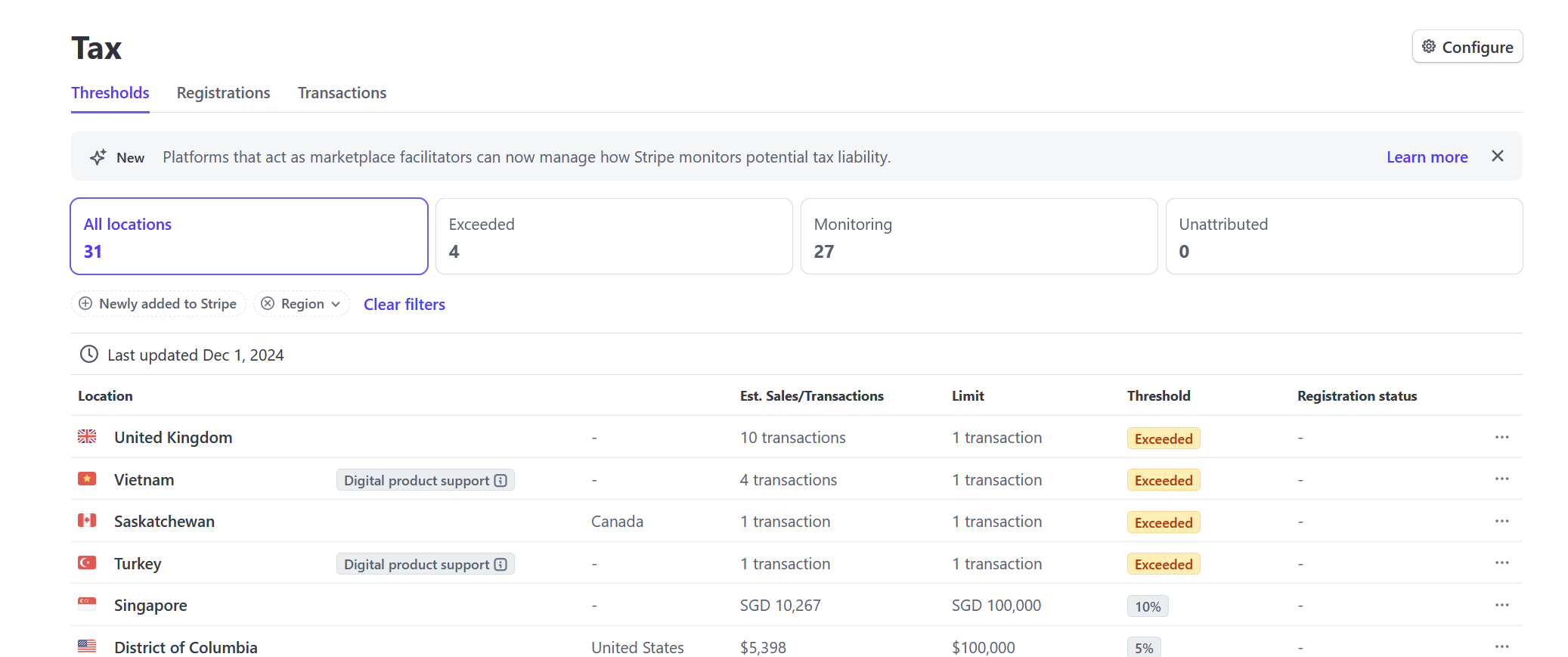
You can find some transactional thresholds here if you use Stripe: https://dashboard.stripe.com/tax/thresholds
Navigating International Tax Obligations [Operation Yes /No]
Effectively Connected Income (ECI)
For foreign ecommerce entrepreneurs, ECI determines whether you need to pay income taxes in the U.S.
You have ECI if you:
- Have inventory in the U.S.
- Live in the U.S. for 31 days or more.
- Are a U.S. citizen.
Advice: If you don't have ECI, your tax obligations in the U.S. may be limited. Always consult a tax professional.
Tax Planning Strategies for Foreign Sellers
- Dual Entities: Set up a U.S. corporation for U.S. operations and a foreign entity for management services.
- Transfer Pricing Agreements: Formal contracts defining the financial relationship between your entities.
- Separate Financials: Maintain distinct bank accounts and records for each entity.
Example: A seller in Ireland could operate a U.S. corporation for sales and an Irish company for management, optimizing tax liabilities in both countries.
Leveraging Marketplace Facilitators for Tax Compliance
What Are Marketplace Facilitators?
Platforms like Amazon, eBay, Etsy, and Walmart that:
- Provide a platform for sellers. (In selldone set ‘Direct Shipping Mode’ in your marketplace settings + Using Stripe Connect in Selldone to split payments at the first place ❤)
- Facilitate payment processing.
- Often handle tax collection and remittance on your behalf.
Benefits
- Simplified Tax Compliance: They collect and remit sales tax for you.
- Focus on Selling: Spend less time worrying about taxes and more on growing your business.
Note: Even if you surpass economic nexus thresholds, you may not need to collect taxes yourself if selling exclusively through these platforms.
The Importance of Transfer Pricing for Global Sellers
What Is Transfer Pricing?
A method used to allocate income between related entities in different tax jurisdictions, ensuring profits are taxed appropriately.
Why It Matters
- Tax Optimization: Legally reduce tax liabilities by distributing income.
- Compliance: Avoid penalties by adhering to international tax laws.
Advice: Implement a transfer pricing agreement if you operate in multiple countries. Consult professionals to structure it correctly.
Staying Compliant: Regular Monitoring and Reporting
Monitor Your Sales Data
- Quarterly Reviews: Assess sales volume and revenue by region.
- Threshold Alerts: Know when you approach economic nexus thresholds.
Use Selldone's Reporting Tools
- Generate Reports: Easily download financial summaries.
- Detailed Breakdown: Understand tax collected per item and per region.
Stay Updated on Tax Laws
- Changes Happen: Tax laws can change annually.
- Professional Advice: Consult tax experts to stay compliant.
Setting Up Tax in Selldone—Step by Step
Now that we've covered the essentials, let's walk through how to set up tax collection in Selldone.
Step 1: Access the Tax Settings
Navigate to your Shop Dashboard and go to Accounting > Tax.
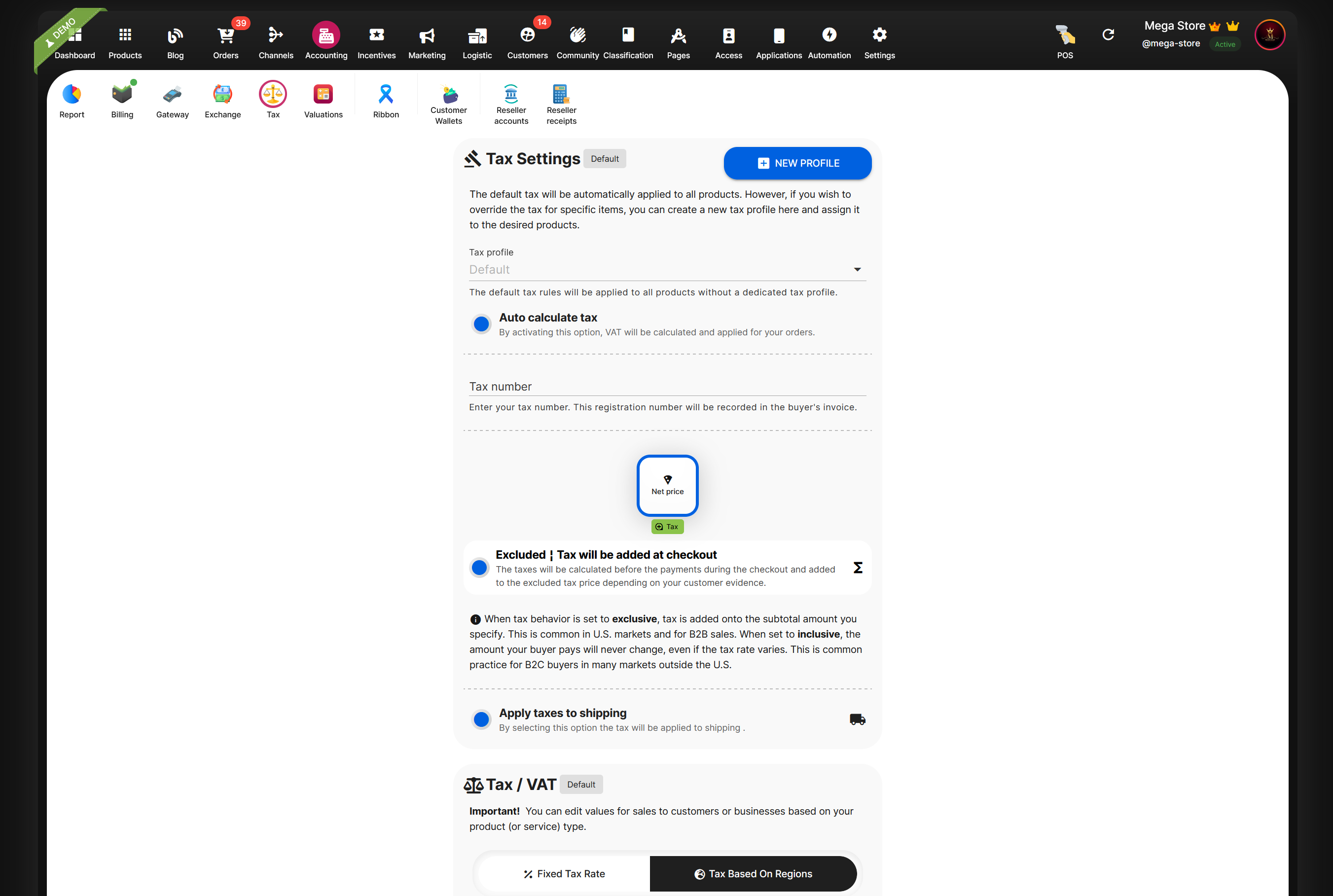
Step 2: Define Default Tax Rule
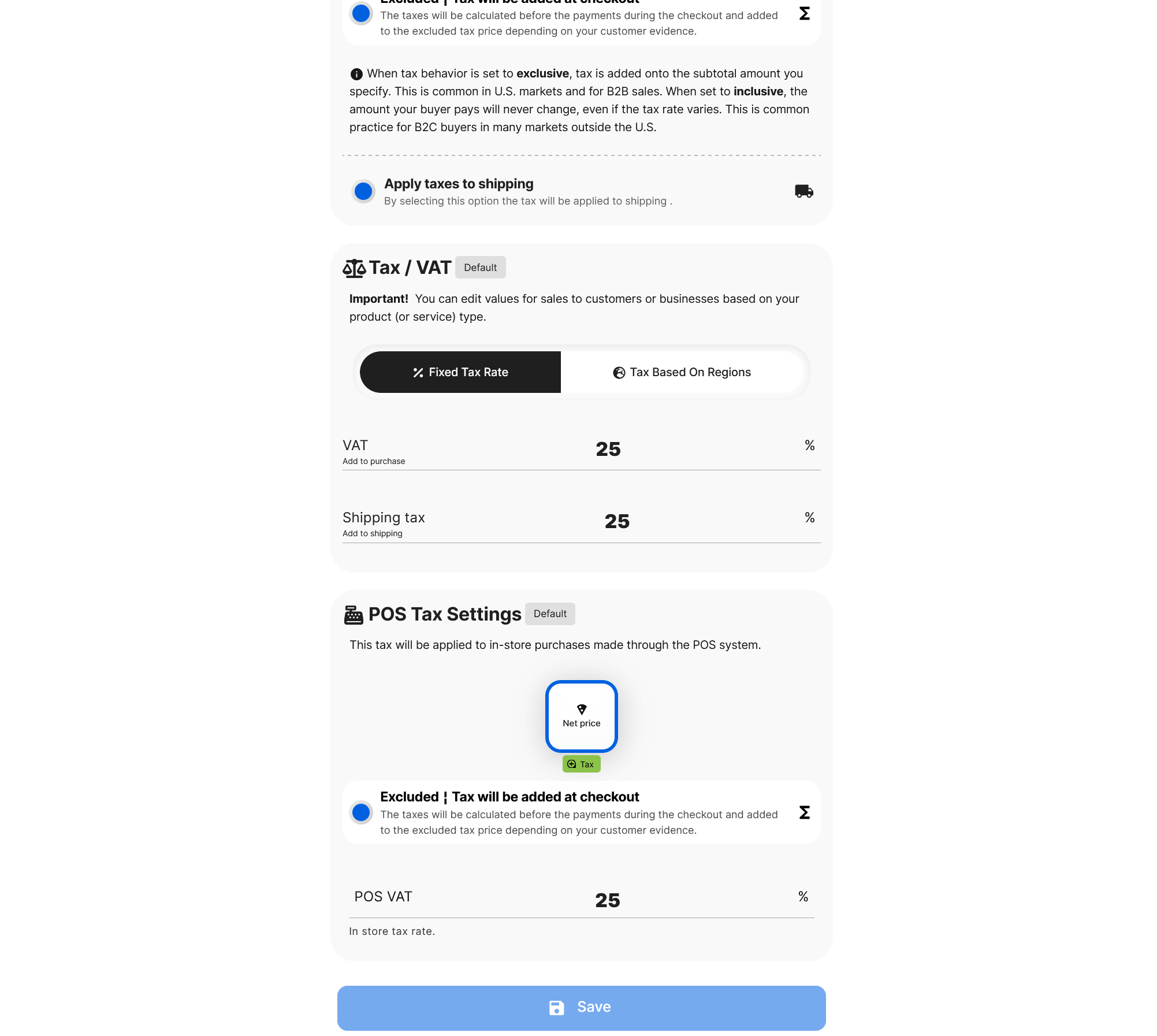
Set a default tax rate that applies to most of your products.
- Tax Rate: Enter the standard rate (e.g., 25%).
- Shipping Tax Rate: Set if shipping is taxable.
- POS Tax Rate: Applicable if you use point-of-sale systems.
- Tax Inclusion: Decide if tax is included in product prices or added at checkout.
- Apply Tax on Shipping: Choose whether to tax shipping costs.
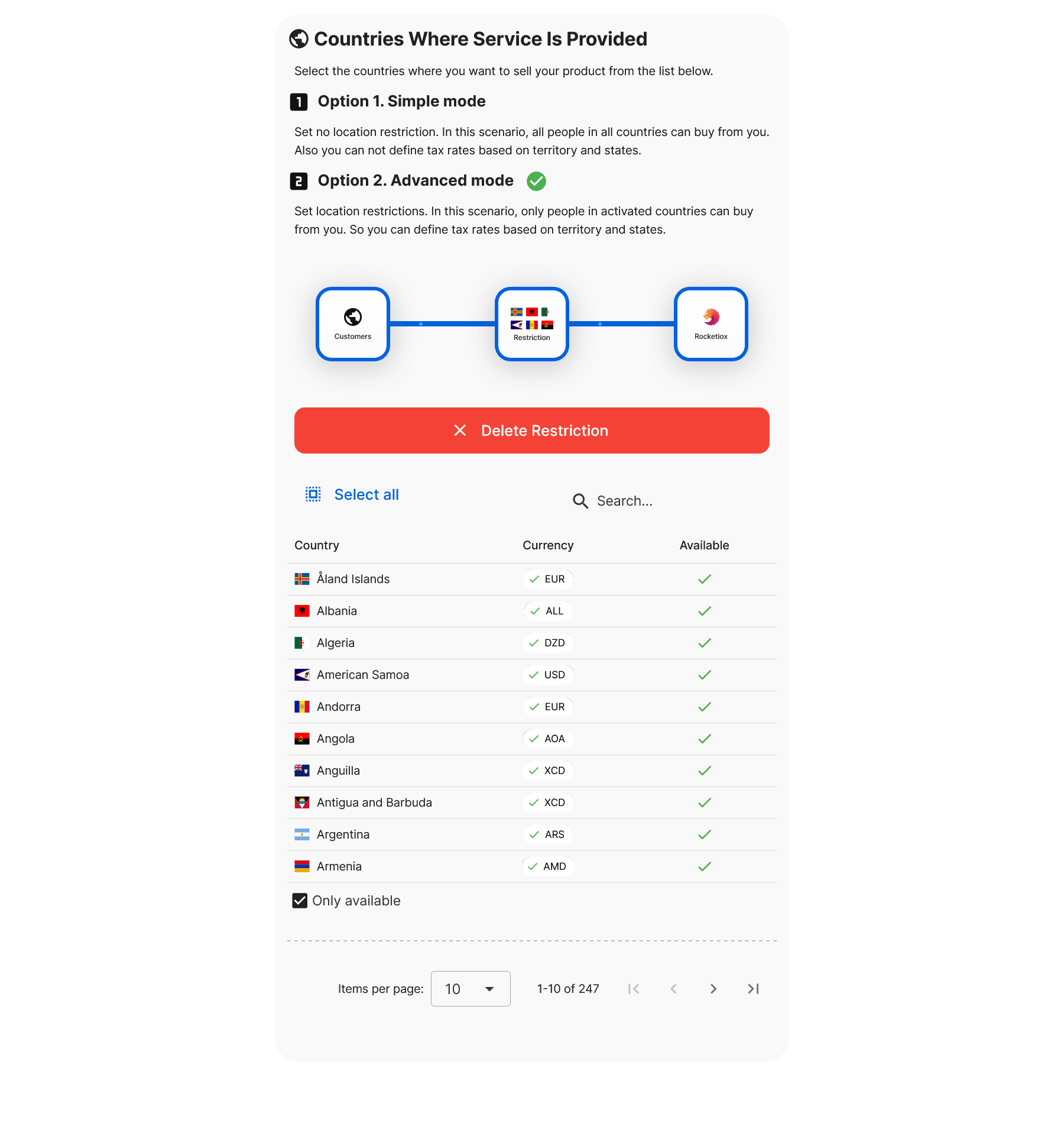
Step 3: Limit Service Countries
To set different tax rates based on location:
- Go to Dashboard > Settings > Locations.
- Select the countries where you offer services.
- Customers outside these countries won't be able to make purchases.
Step 4: Override Tax Rules by Territory
In the tax panel, you can create overrides:
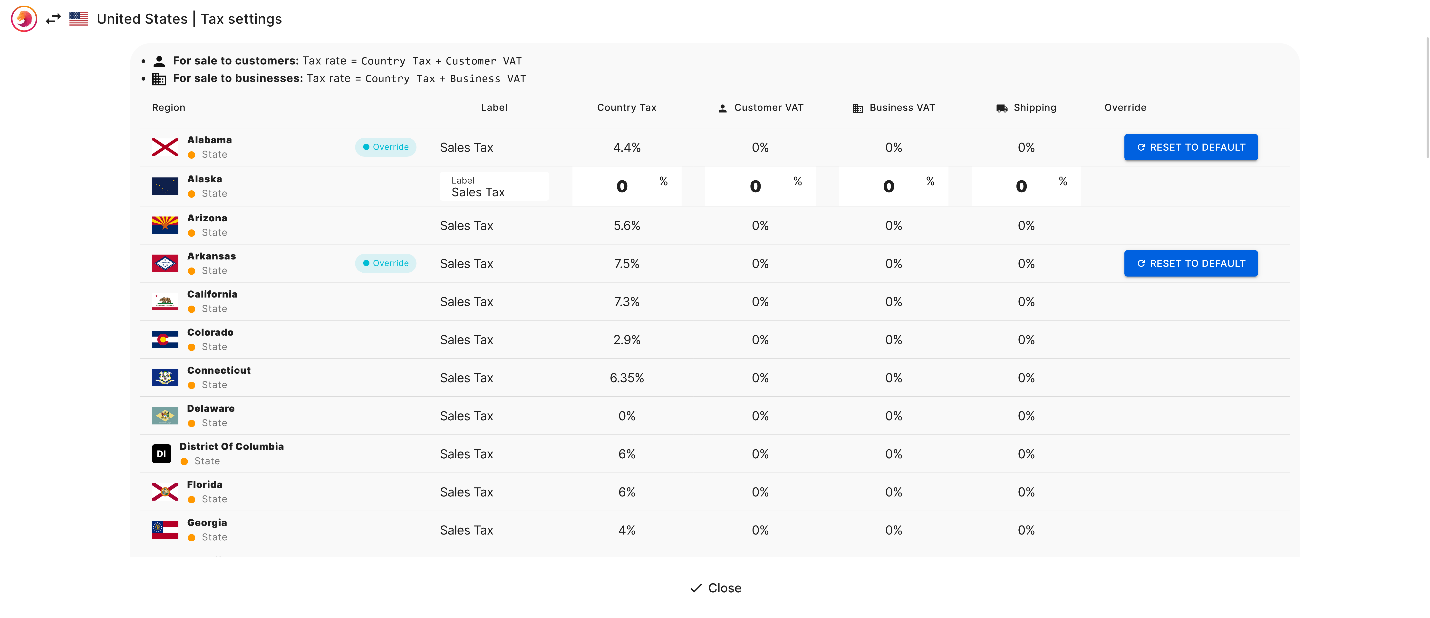
- By Country: Set specific tax rates for different countries.
- By State/Region: Further refine rates within countries.
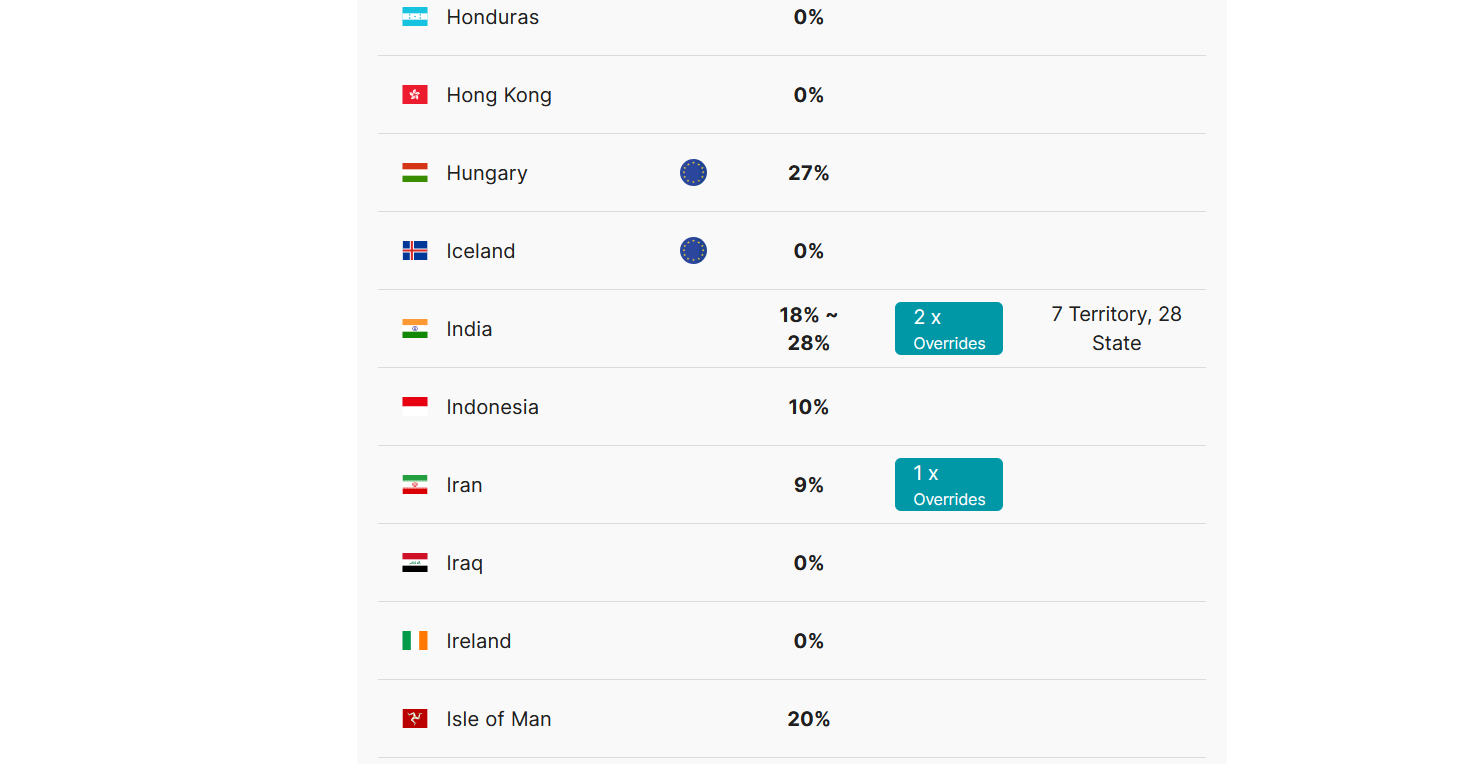
For example, override the sales tax rate in the U.S. based on individual states.
Step 5: Define Different Product Tax Classes
Some products may have different tax rates (e.g., luxury goods, essentials).
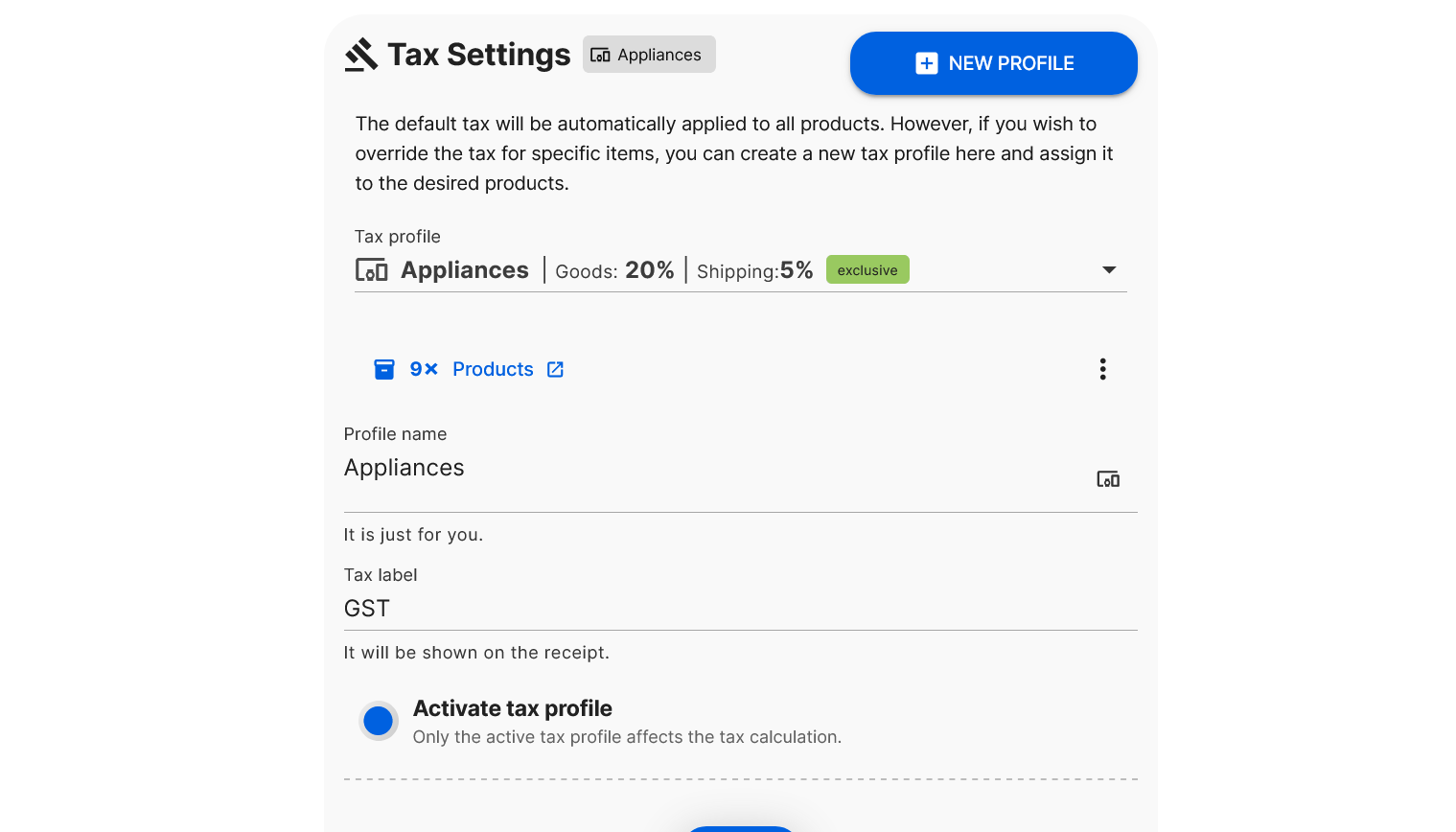
- Click on "New Profile".
- Enter Profile Name and Tax Label (how it appears on invoices).
- Set specific rules and rates for this tax profile.
- Optionally, assign an icon for easy identification.
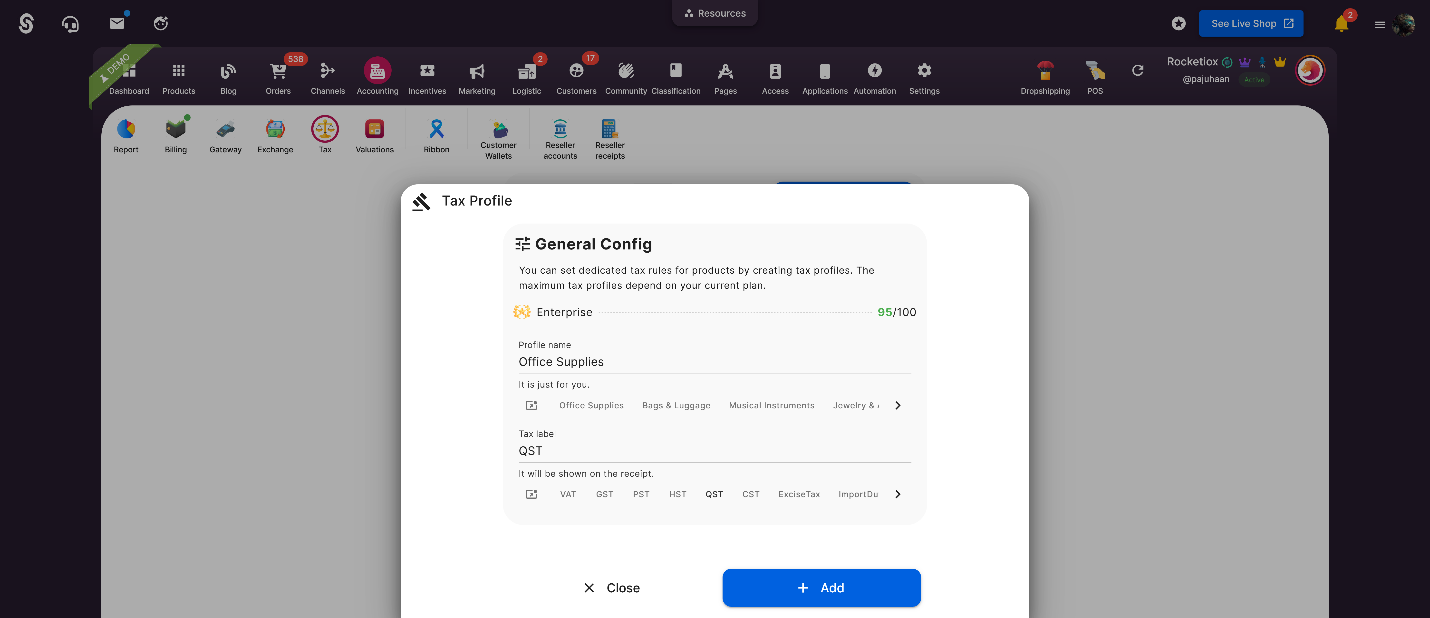
Now you can set different rules and rates for this Tax Profile. Also, you can set an icon for it.
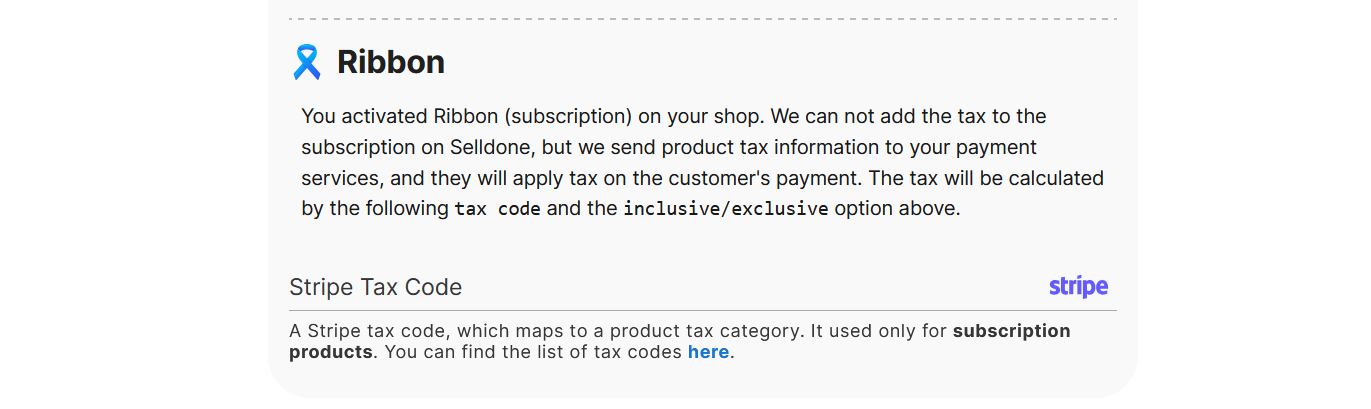
Note: If you sell subscriptions via Stripe, you can define the Stripe Product Tax Code here.
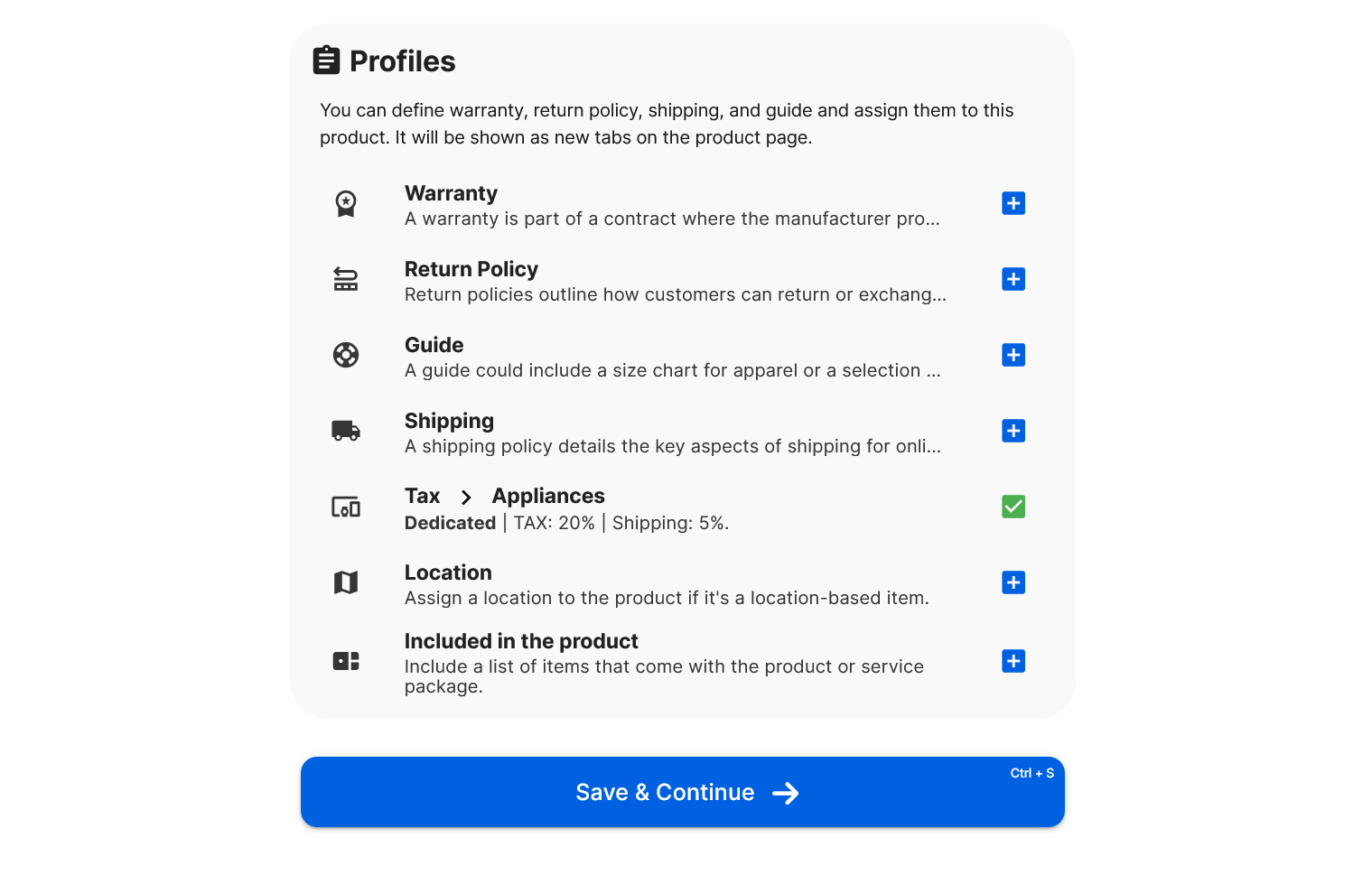
Step 6: Assign Tax Profiles to Products
- In the Product Edit page, scroll down to the Profiles section.
- Click on the Tax row.
- Select the appropriate Tax Profile.
- Click Save.
If no tax profile is assigned, the default rule applies.
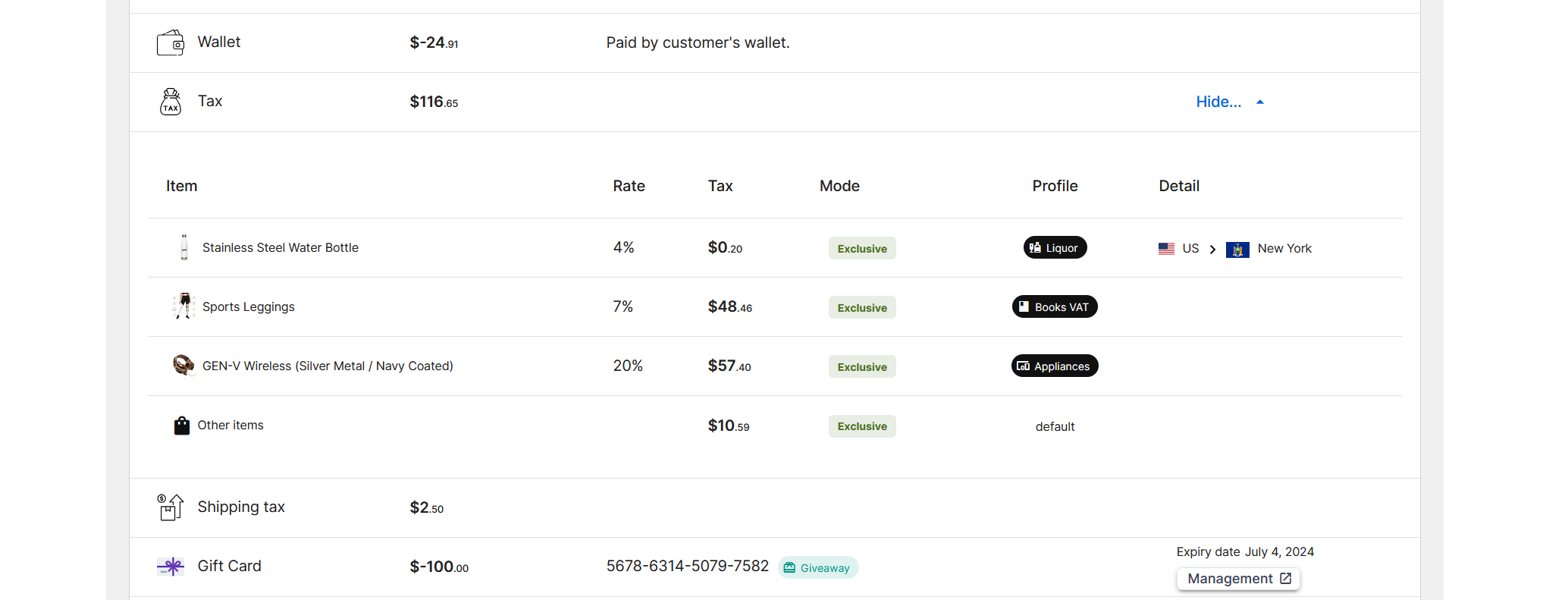
Step 7: Review Tax Calculations
Selldone calculates and collects tax automatically.
- In any Order Page, view detailed tax calculations.
- Click on Details to see tax per item and the applied tax rule.
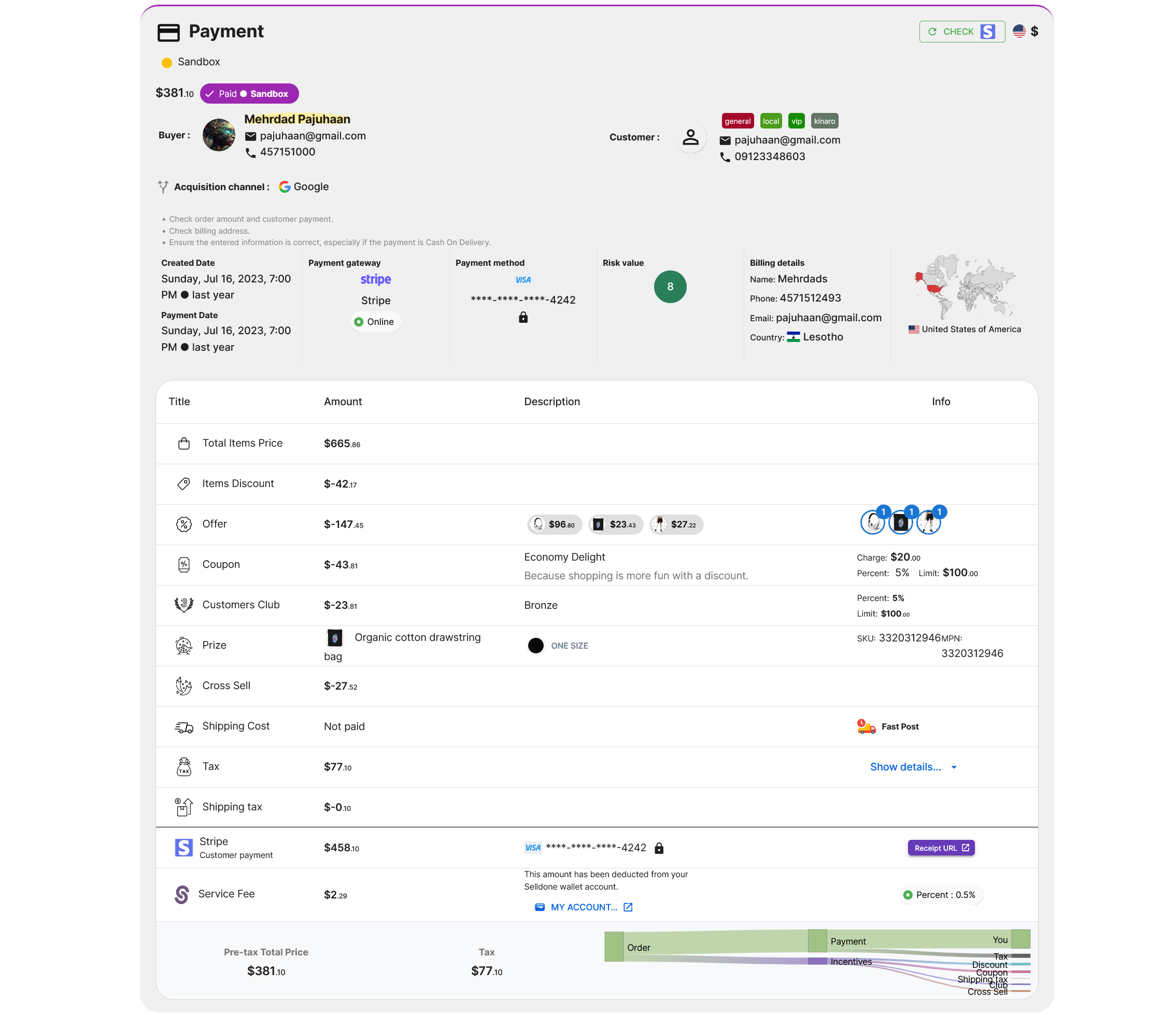
When you click on details it will show the calculated tax per item and applied Tax Rule
Step 8: Generate Tax Reports
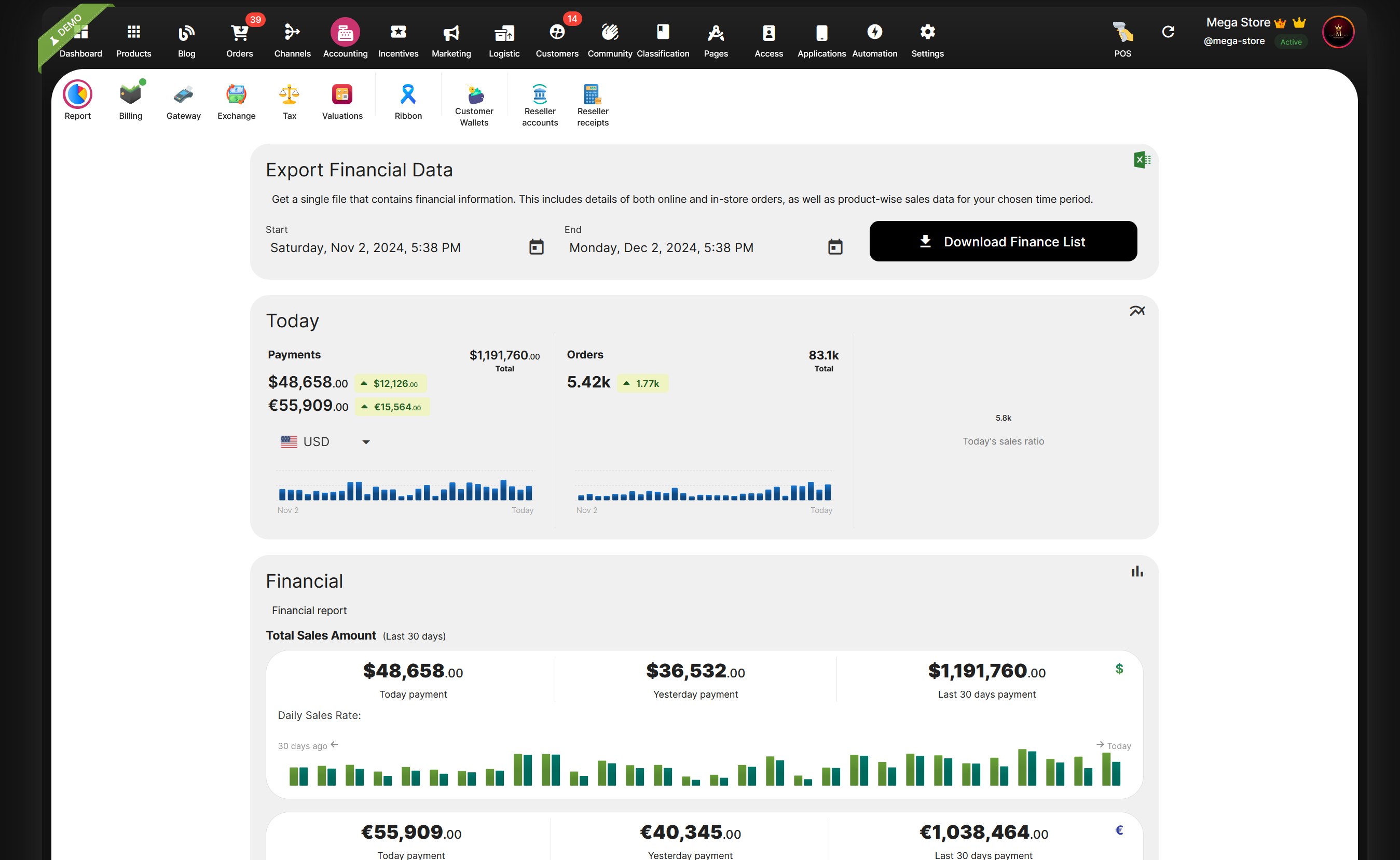
Stay on top of your tax obligations by generating reports.
- Go to Shop Dashboard > Accounting > Report.
- Select the Start and End Date.
- Click on Download Finance List.
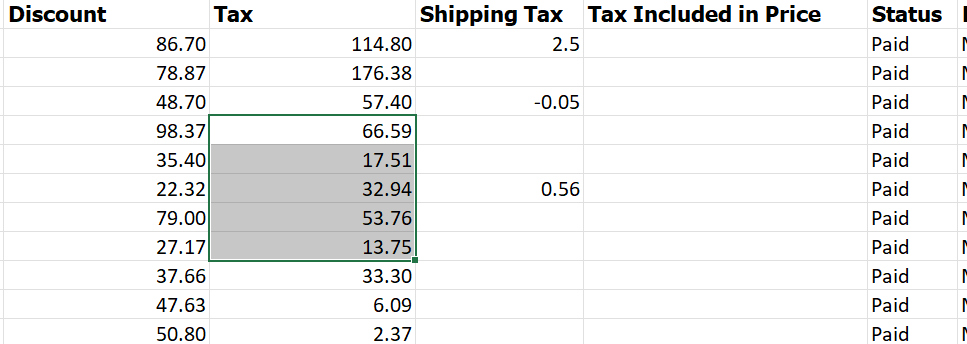
- An Excel file will provide a detailed breakdown.
Excel Output:
Practical Checklist for Tax Setup
To ensure you've covered all bases, here's a handy checklist:
- Access Tax Settings in Selldone.
- Set Default Tax Rules (rates, shipping, inclusion).
- Limit Service Countries to where you operate.
- Override Tax Rules based on territories if necessary.
- Create Tax Profiles for different product classes.
- Assign Tax Profiles to individual products.
- Review Tax Calculations on order pages.
- Generate and Review Tax Reports regularly.
- Stay Updated on tax laws in your service regions.
- Consult Professionals if unsure about any step.
Final Thoughts
Tax compliance doesn't have to be a daunting task. With the right tools and knowledge, you can simplify the process and focus on what you do best—growing your ecommerce business. Selldone offers a comprehensive suite of features that make tax collection and management a breeze.
Need more help? Ask me anything, and we will answer them here.
Download The Book of Ecommerce Tax
 Add Comment
Make Your Business Online By The Best No—Code & No—Plugin Solution In The Market.
30 Day Money-Back Guarantee
Create Your E-commerce Store Start now — it's freeSay goodbye to your low online sales rate!
FAQ
Do I need to register for a tax code before selling my first item?
Not necessarily. Many countries and states have sales thresholds you must exceed before needing to register. Always check local laws.
Can Selldone handle international taxes?
Yes, Selldone supports territory-based tax calculations, allowing you to set rules for different countries and regions.
Is it necessary to use Stripe Tax with Selldone?
No, Selldone can handle tax calculations internally. While you can enable Stripe Tax, it requires manual setup for each product.
How does Selldone's upcoming AI Tax feature help me?
The AI Tax Classification and Rate Prediction will automate tax setup, reducing manual steps and potential errors.
What if I sell a unique product with a special tax rate?
You can create a custom tax profile in Selldone and assign it specifically to that product.

![How to Create Custom Vue Components for Your Landing Page Like Amazon [Responsive + Customizable]](https://cdn.selldone.com/app/contents/articles/45ddd731d3c9ff092d593d7a2750202b.png)